Packaging Value

Innovative Development in Packaging

  • Labeling Machines
  • CapLining Materials and Induction Machinery
  • Induction Sealing
  • Hang Tabs
  • Contact Us

Label Color Management-Reader/Acrobat

March 19, 2017 by value

Color Label Solutions prints and send label samples out most days.  And I’d say most of these samples are printed from Adobe Acrobat in my case.  However, many of our customers print from Adobe Reader.  These customers create artwork in Adobe Illustrator, Photoshop or some other application before saving as a PDF.

While at a customer site this week, I decided to test some of the other Adobe Color Settings; as the colors in the initial print output were different from the C7500G versus the customer’s standard printer. By accident, I’ve found an additional way to improve color matching.  I’m sure many graphic artists understand these capabilities; but I did not.
In the past, I posted on using the ColorTone Matching assistant and/or the Wasatch RIP available in the C7500GE to improve color matching. 

http://colorlabelsondemand.blogspot.com/2016/11/c7500ge.html 

But for many of you, selecting a different setting in Adobe Reader or Acrobat may give you “close enough” or sufficient color matching.  Let me explain further.
In the print dialog box of Adobe Reader, you can find the “Advance” button.
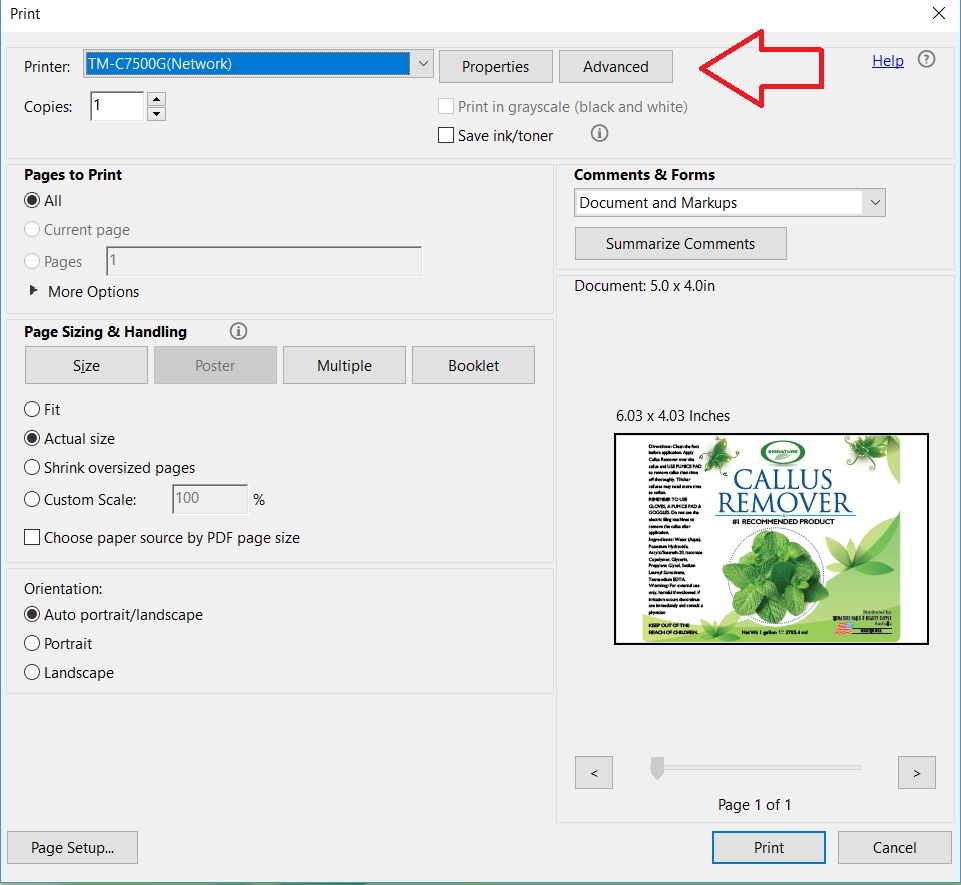
Adobe Print Dialog Box

In the Advance dialog box, you’ll find 3 basic options for color printing.
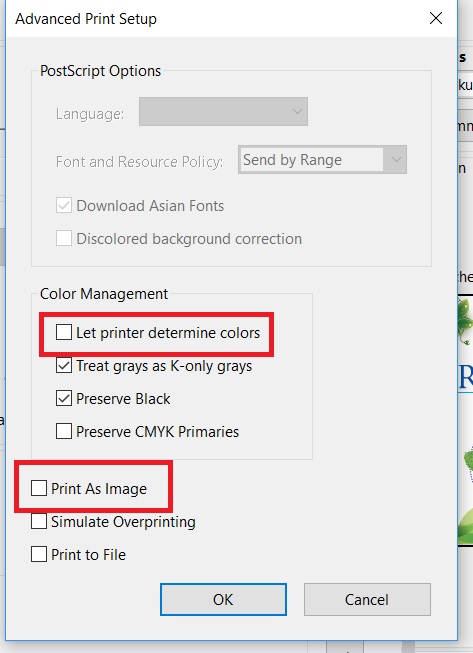
Adobe Reader “Advanced” Print Dialog Box

  • Let Printer Determine Colors Checked
  • Let Printer Determine Colors Unchecked (PDF Determines Colors)
  • Print as Image

In addition, you can select “Preserve CMYK Primaries” and “Preserve Black”.  However, I didn’t notice any difference with these selections alone.
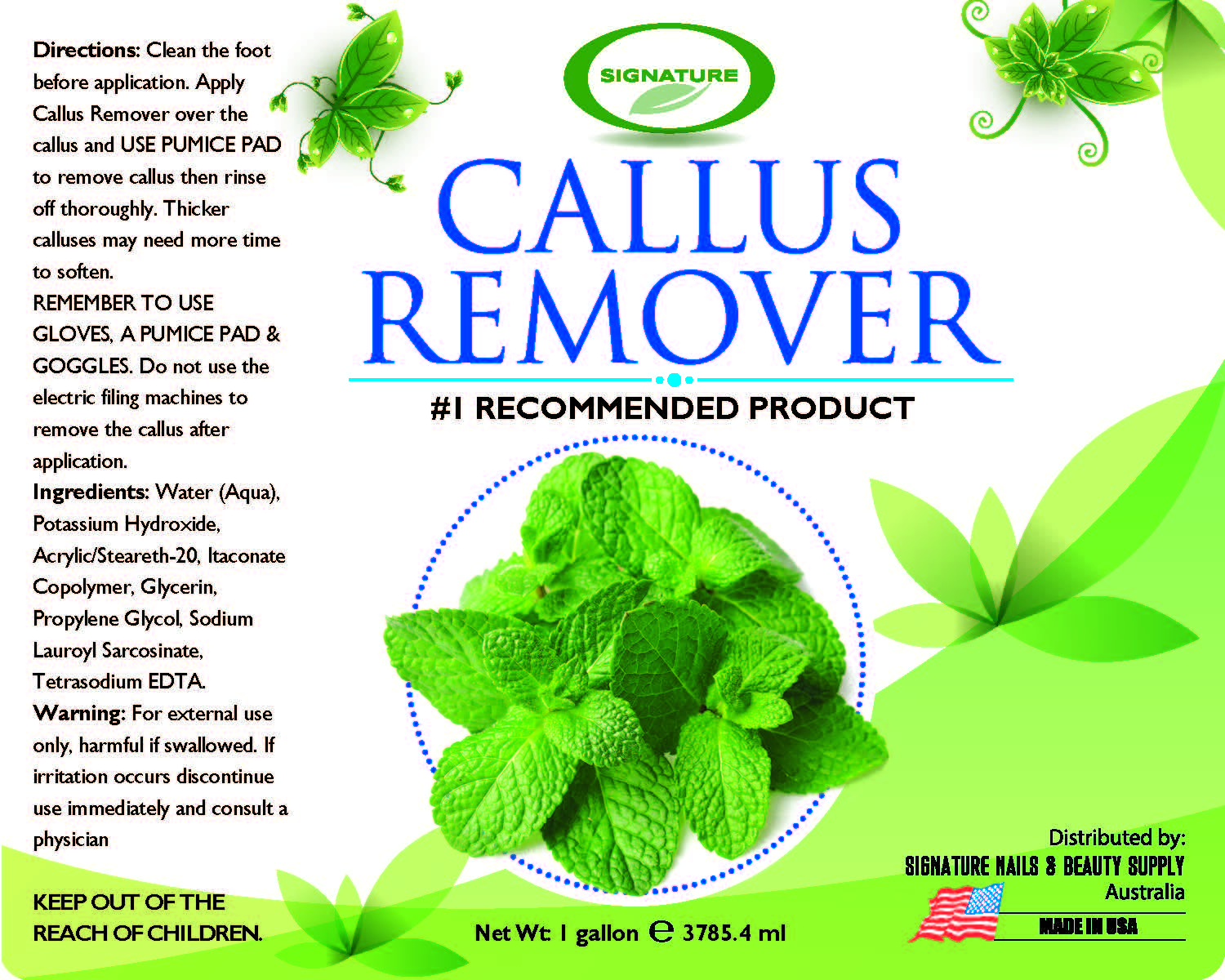
With the above label artwork, I found a difference when printing as an image.  The green was darker, and maybe more yellow when printing using the setting “Print As Image”.

In Acrobat, I found Adobe provides many more options for color management; with 4 basic types:

  • Printer Color Management
  • Same As Source
  • Adobe Color Management
  • Print as Image

When Printer Color Management is selected, Acrobat says “Color Handling determines if color management will be used, and if so, whether it happens in the application or at the printing device. When ‘Printer’ is selected, convert any ICC profiles to PostScript CSAs, and color will be managed in the printer RIP.
With Same As Source is selected, Acrobat says “Color Handling determines if color management will be used, and if so, whether it happens in the application or at the printing device. When ‘Same as Source (No Color Management)’ is selected, embedded profiles are ignored, and only device values are sent.
When Acrobat Color Management is selected, Acrobat says “Color Handling determines if color management will be used, and if so, whether it happens in the application or at the printing device. When ‘Acrobat Color Management’ is selected, select an ICC Profile that describes the target output device.”
In my version of Acrobat, I count 42 different ICC profiles available when selecting Acrobat Color Management.  Although not printing using all of the available profiles (some are black/grey’s only), I did find differences. With most of the profiles, I did not see a difference using this artwork and label media.
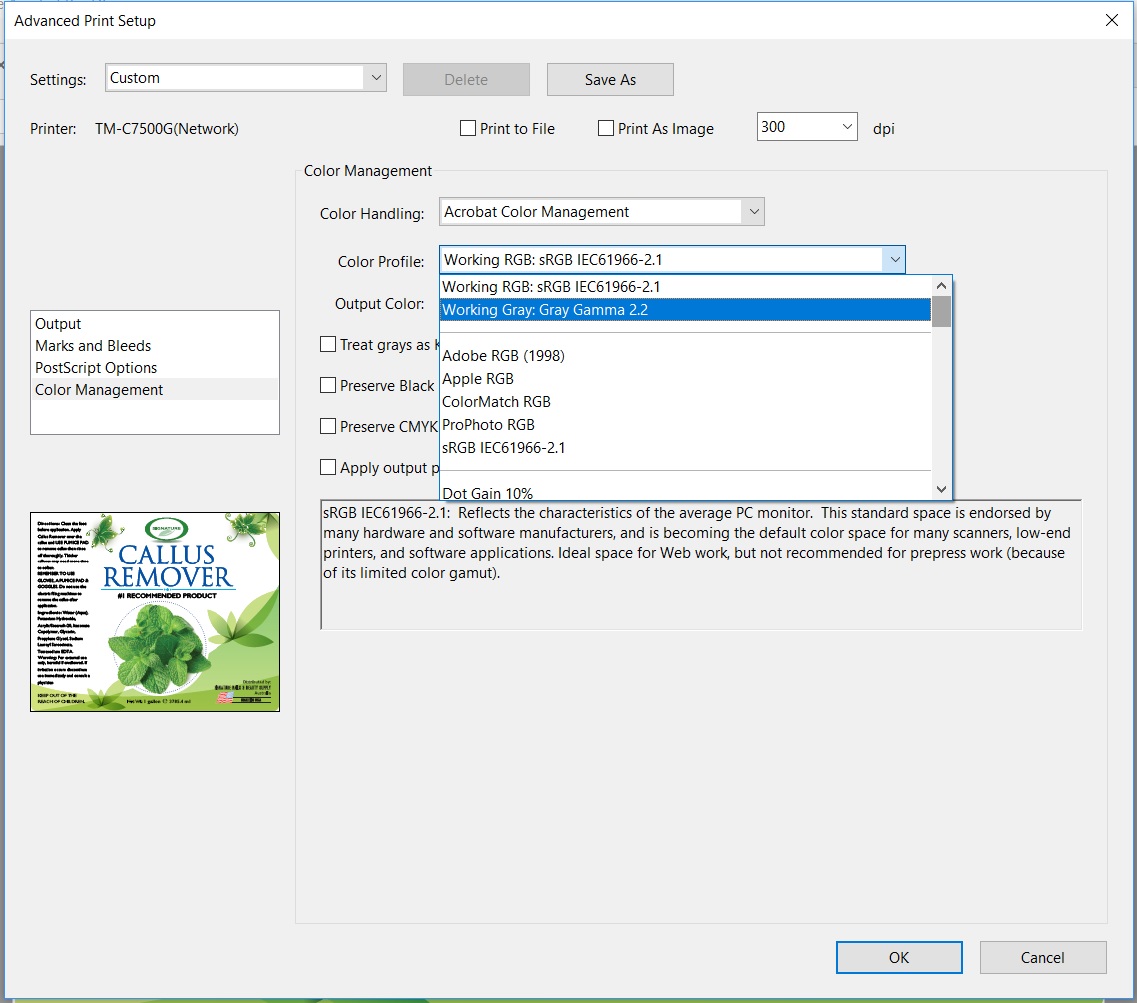
Acrobat Color Management Profiles

Using ColorMatch RGB (Matches the native color space of Radius Pressview monitors.  This space provides a smaller gamut alternative to Adobe RGB (1998) for print production work), I found a darker green with this artwork.
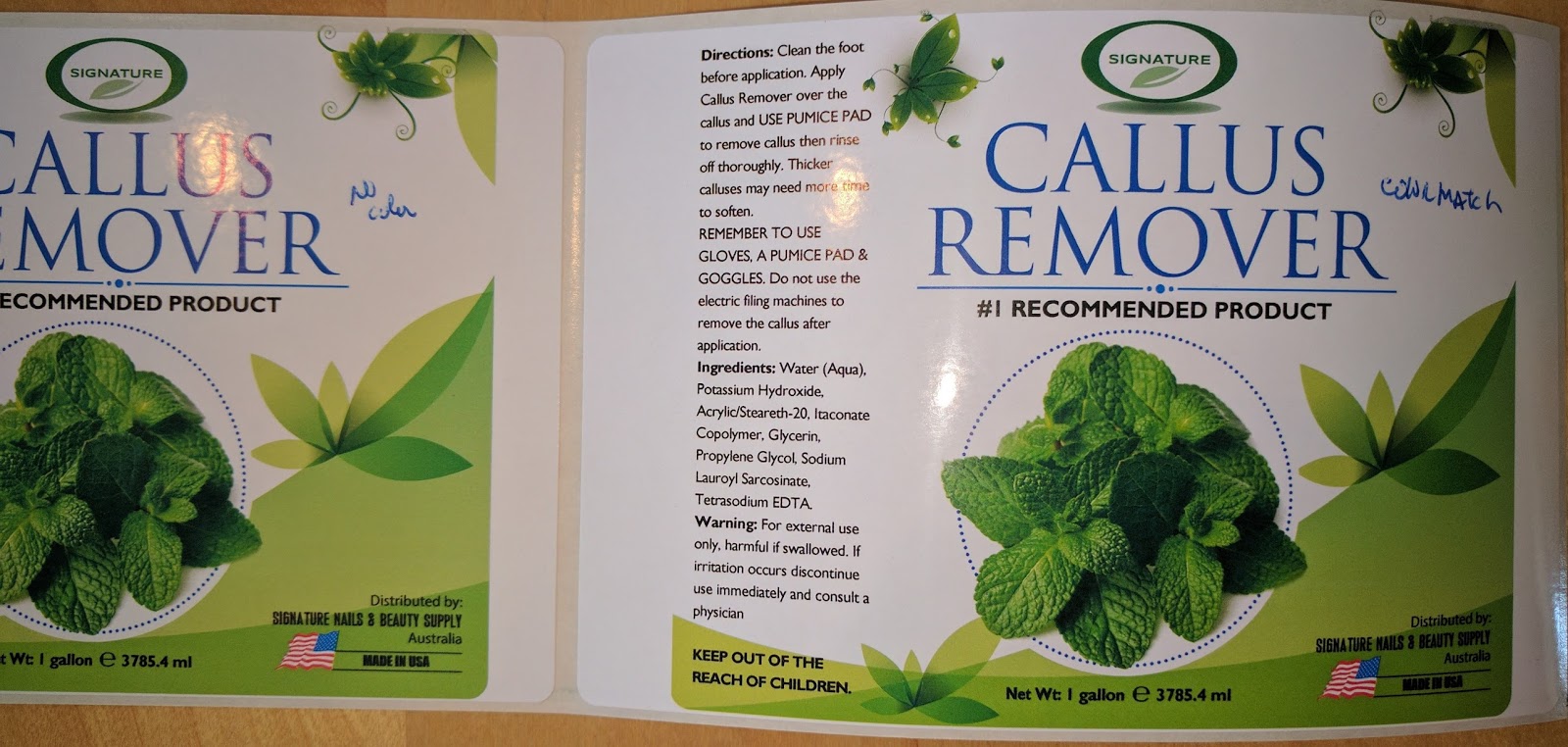
Acrobat ColorMatch Profile
And I found the same print output using Apple RGB: (Reflects the characteristics of the average Mac OS monitor, and is used by a variety of desktop publishing applications, including Adobe Photoshop 4.0 and earlier.  Use this space for files that you plan to display on Mac OS monitors, or for working with legacy (older) desktop publishing files.)
In addition, I did see a difference by selecting “Printer Color Management”.  I’ve decided to make this setting the default.
For those of you printing with Adobe Reader or Acrobat, I encourage you to test your artwork with the variety of settings and maybe label media to see if you find a difference in color of your print output.  You may find a better color matching option.
And for those of you we’ve sent samples, forgive me if the color wasn’t exactly correct.  Maybe I could produce better color matches now.
Guy Mikel
855-962-7670
info@colorlabelsolutions.com

Filed Under: Label Printers Tagged With: Color Label Printers, Kiaro, Labels

L301

February 24, 2017 by value

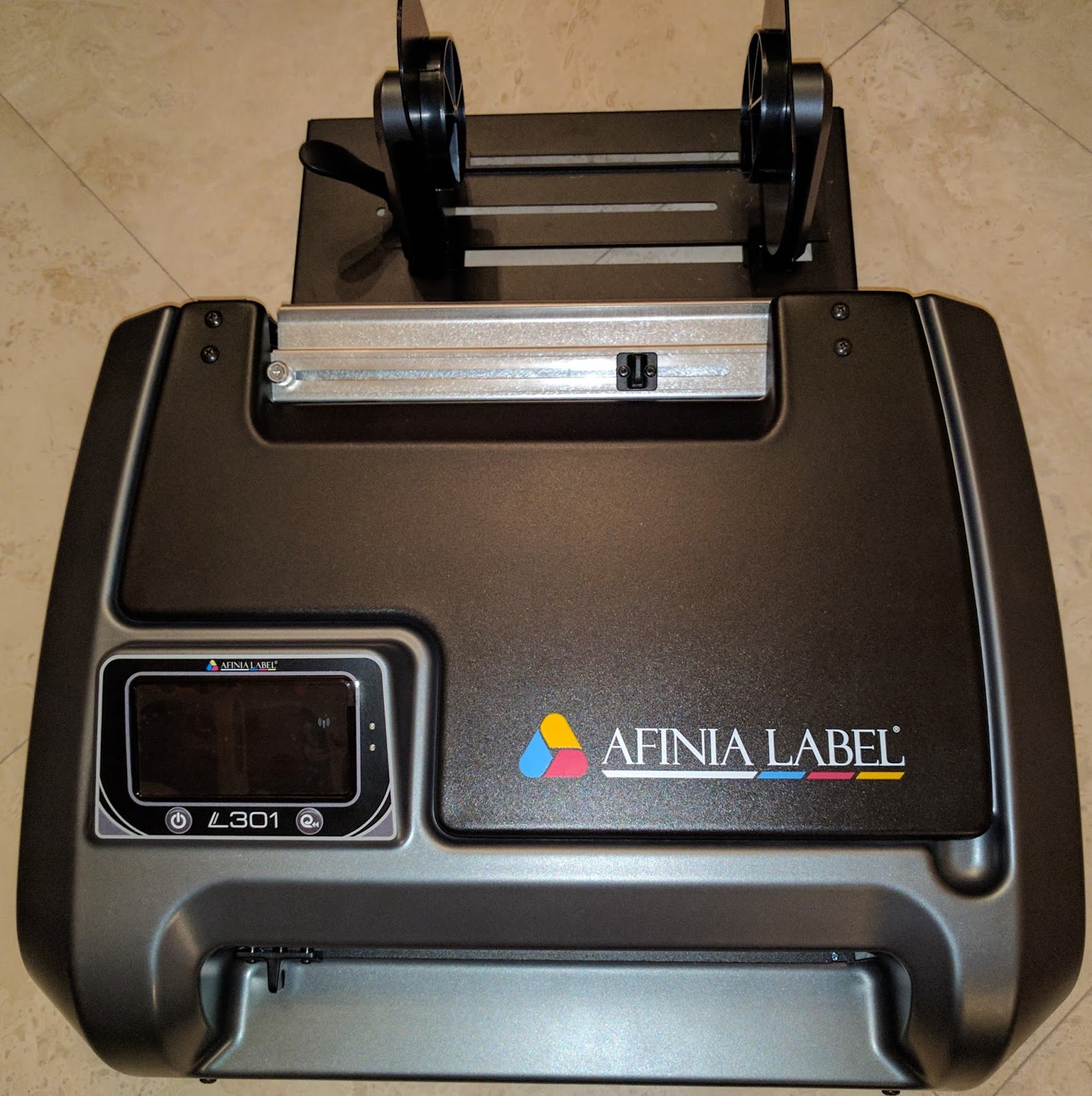
I received my new printer the other day: the L301.

L301
L301
Selling at $1,595, the L301 is the lowest price 4+” color label printer available.  The ability to print up to 6” wide labels at this price point seems like a very interesting proposal for small label producers.  I wanted to try it; so here is my out-of-the-box report.
L301 Label Printer
L301 Label Printer
Prior to taking the printer out of the box, I realized that I could not install the driver.  I needed to get from Afinia a file of the driver to download.  At the time, the driver was not publicly available.  You can now download it here along with the instruction manual and quick start guide:

http://afinialabel.com/support/software-drivers/

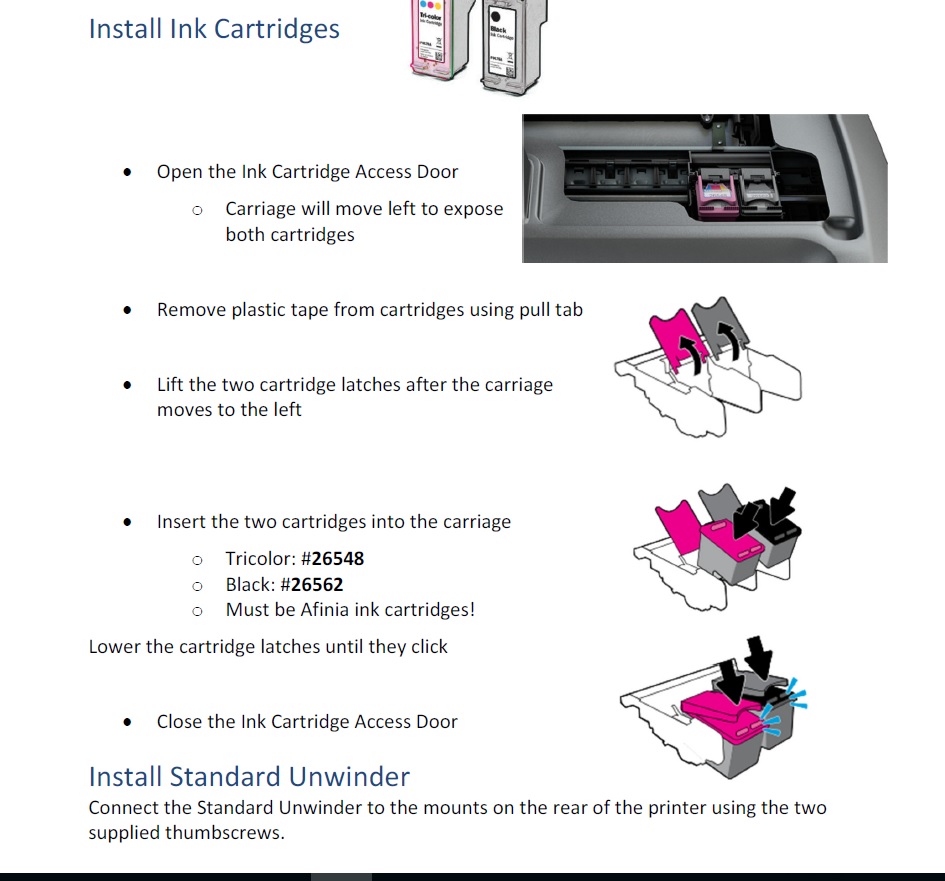
After unpacking, I started to install the printer by first plugging in the printer and installing the ink cartridges.  Immediately I found discrepancy with the ink cartridge numbers.  The manual called for Cartridges: #26548 and #26562. However the numbers on the bags were different.  In the production units, the part numbers will be on the cartridge outer packaging.  


After installing the ink cartridges, I installed the driver.  However, the driver does not install completely until the USB is connected.  Afinia says do not connect the USB cable until the driver is installed.
Once installed, the driver looks similar to the Neuralabel 300x and Primera LX2000 driver.  Both printers use HP print engines; so that makes total sense to me.  Read my earlier post on the LX2000 here:   

http://colorlabelsondemand.blogspot.com/2015/06/lx2000-full-bleed-color-label-printer.html

And 300x here:

http://colorlabelsondemand.blogspot.com/2016/03/300x-color-label-printer-top-10.html

Next, the instructions gave me information about the media.  Narrowest width is 2”; and shortest label is 2”.  A 2” x 2” label is pretty large for the minimum size.  Afinia hopes to reduce the minimum size to 1.75” x 1” shortly.  And the widest printable label is 6”.  The printer uses a 3” core, and a max OD of 6”.  I then installed the media on the unwinder which was a lot easier than on the VIP 495.  Read my post about this printer here: 

http://colorlabelsondemand.blogspot.com/2015/05/495.html

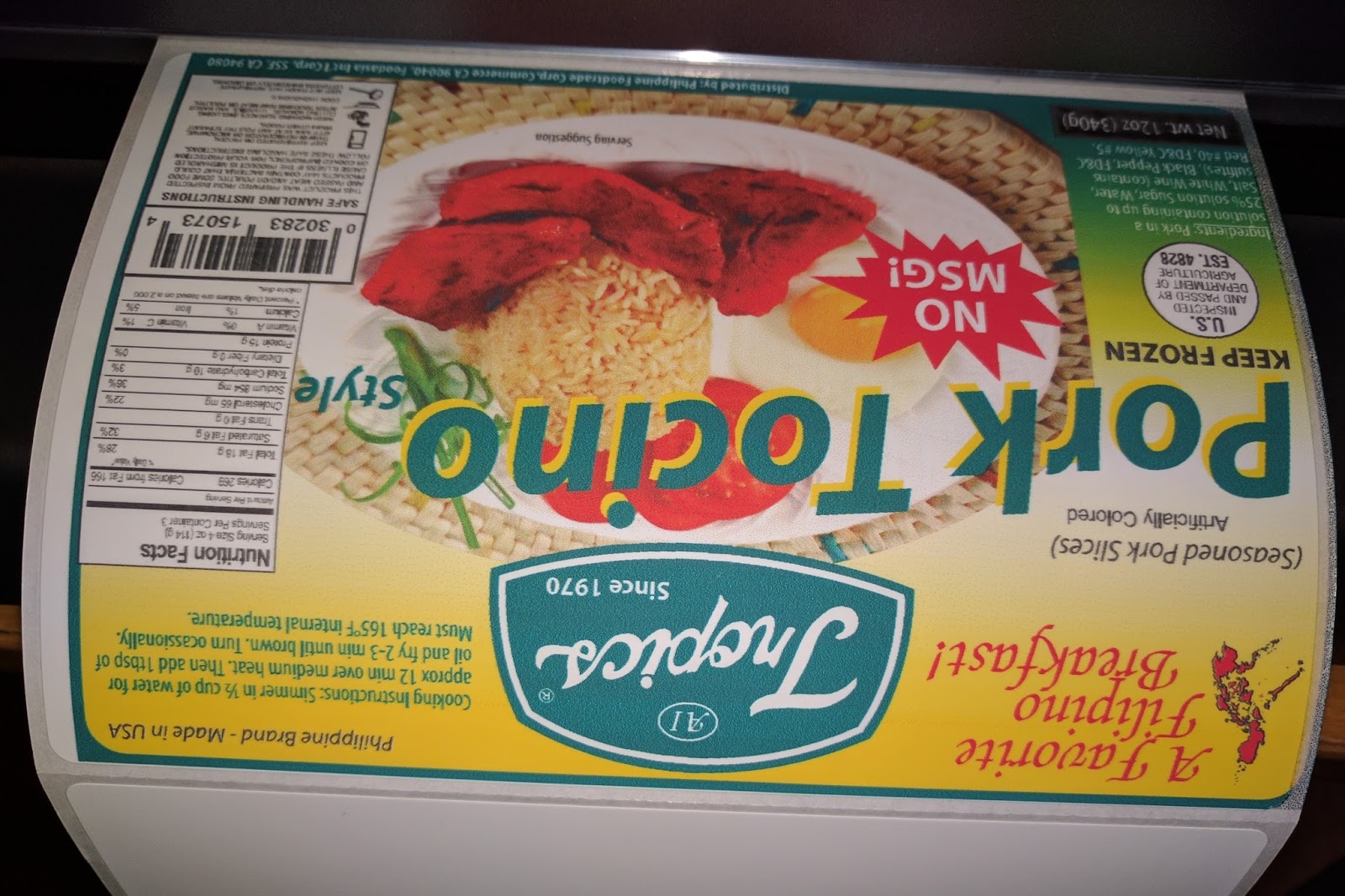
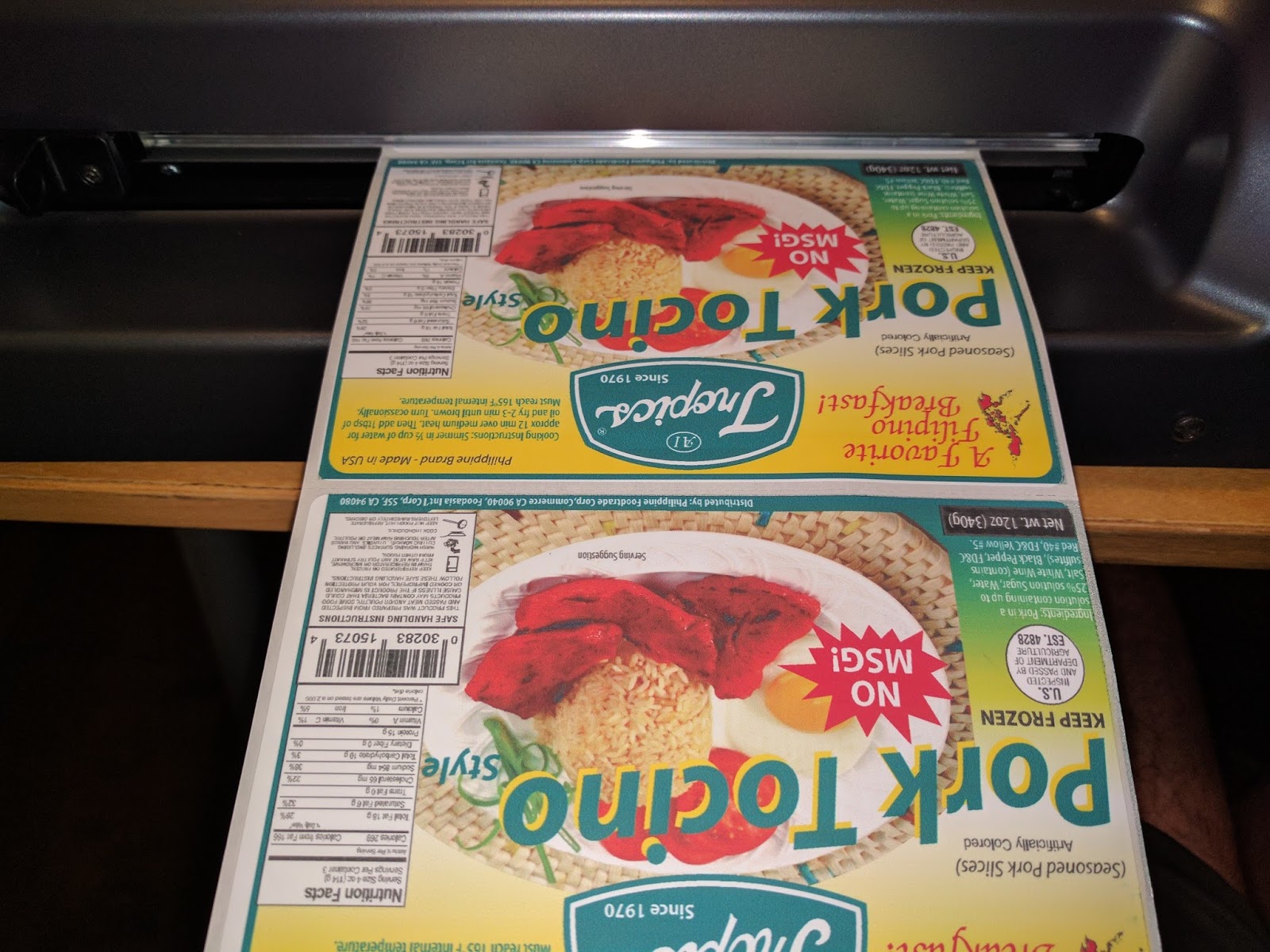
After inserting the paper, the printer pulled the label media into the printer and found the gap.  I then printed my first 6” x 4” matte poly label.  My first print took exactly 1 minute.  And I did lose a label on my first print as the printer had to find top of form.  Here is my first print on a matte poly coming out of the printer:

L301 First Print
L301 First Print
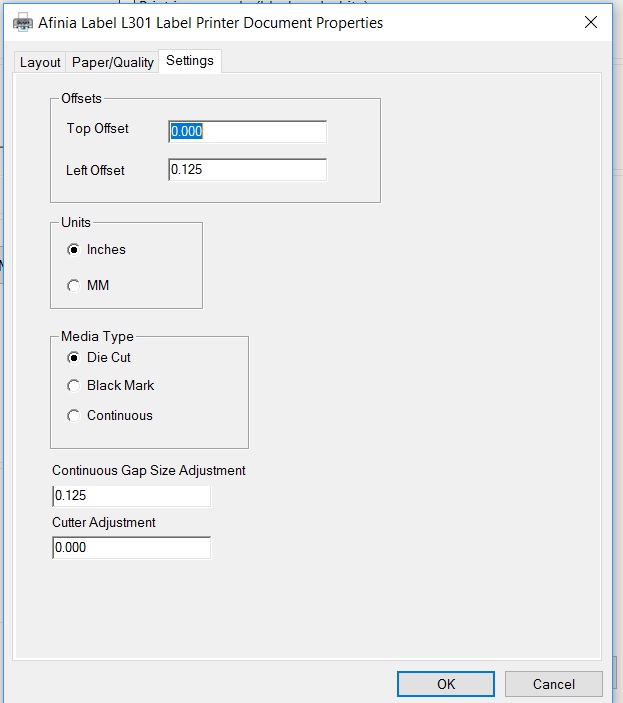
As you can see, my right side was printing on the liner.  To adjust this print start position, I had to simply add space on the “Left Offset” in the driver, found on the “Settings” tab.

L301 Driver Setting Tab

On my second label, the time to print was cut in ½.  Slightly less than 30 seconds to print a 6” x 4” label.  And the Left Offset adjustment worked! Notice the difference in the location of the ink on the right side of the printer.

L301 Printed Labels
L301 Printed Labels
To cut, I just moved the cutter across the path of the web.  Worked great. Looking at the cut position, I noticed I would want to add about a 1/16” of an inch.  The cutter adjustment in the driver enables this configuration; but does not say which direction is positive or negative.  I’ve learned later that positive ejects the labels out further.
Next, I printed gloss paper labels.  First I used a 6” x 4” label with a .25” gap and blackmark.  When I tried to print, it would not work correctly.  After thinking about the problem, I realized the blackmark was directly in the gap; and may be fooling the gap sensor.  When I changed to blackmark, the gloss paper label printed as expected.
However, the printed label had two issues.  First the print output had lines.

L301 Label Needing Alignment
By completing an ink cartridge alignment, the lines disappeared.  Look at the Cyan block pre/post alignment.

L301 Alignment
L301 Alignment
I’m not surprised by the fact the cartridges require alignment when you first use the printer.
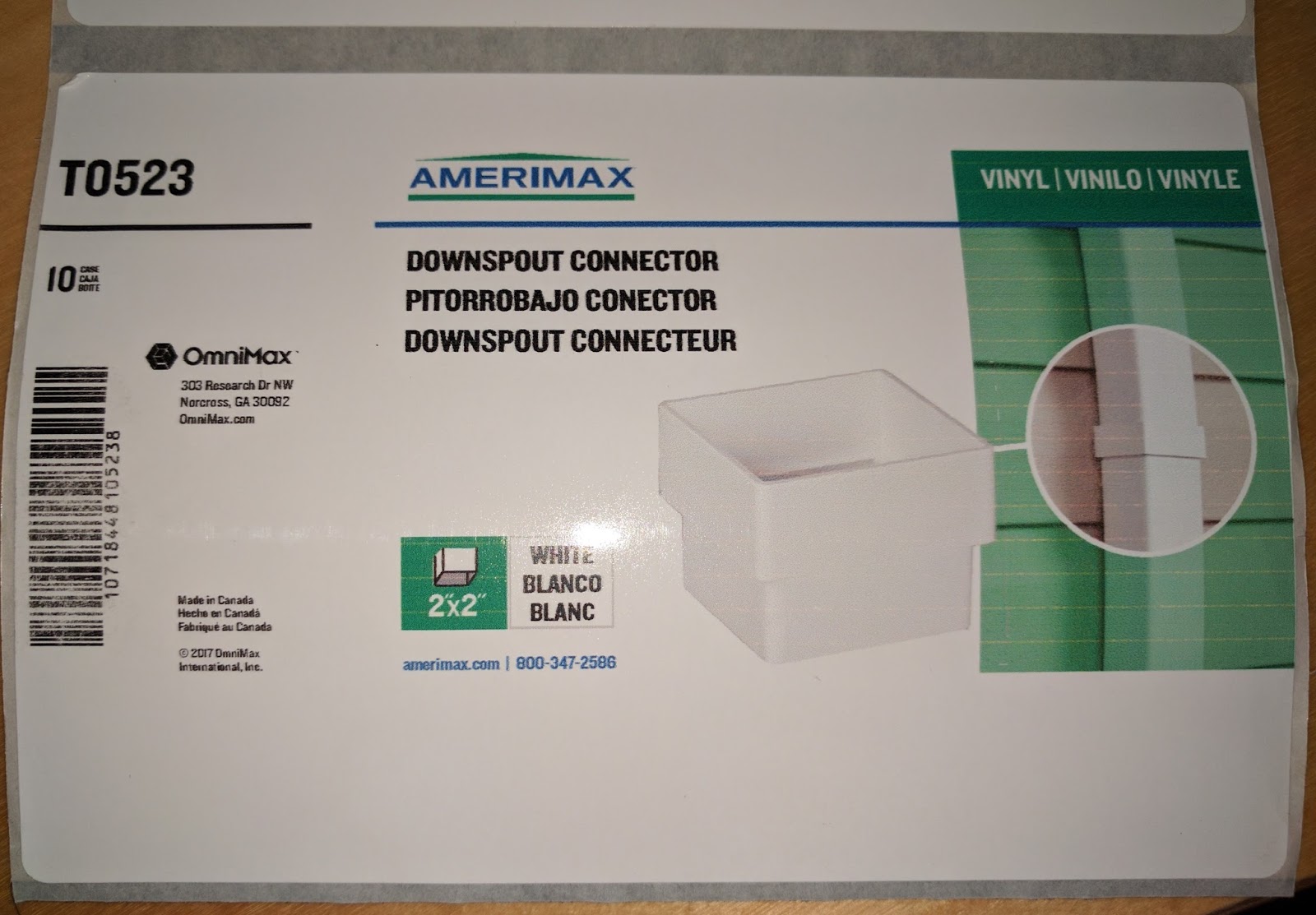
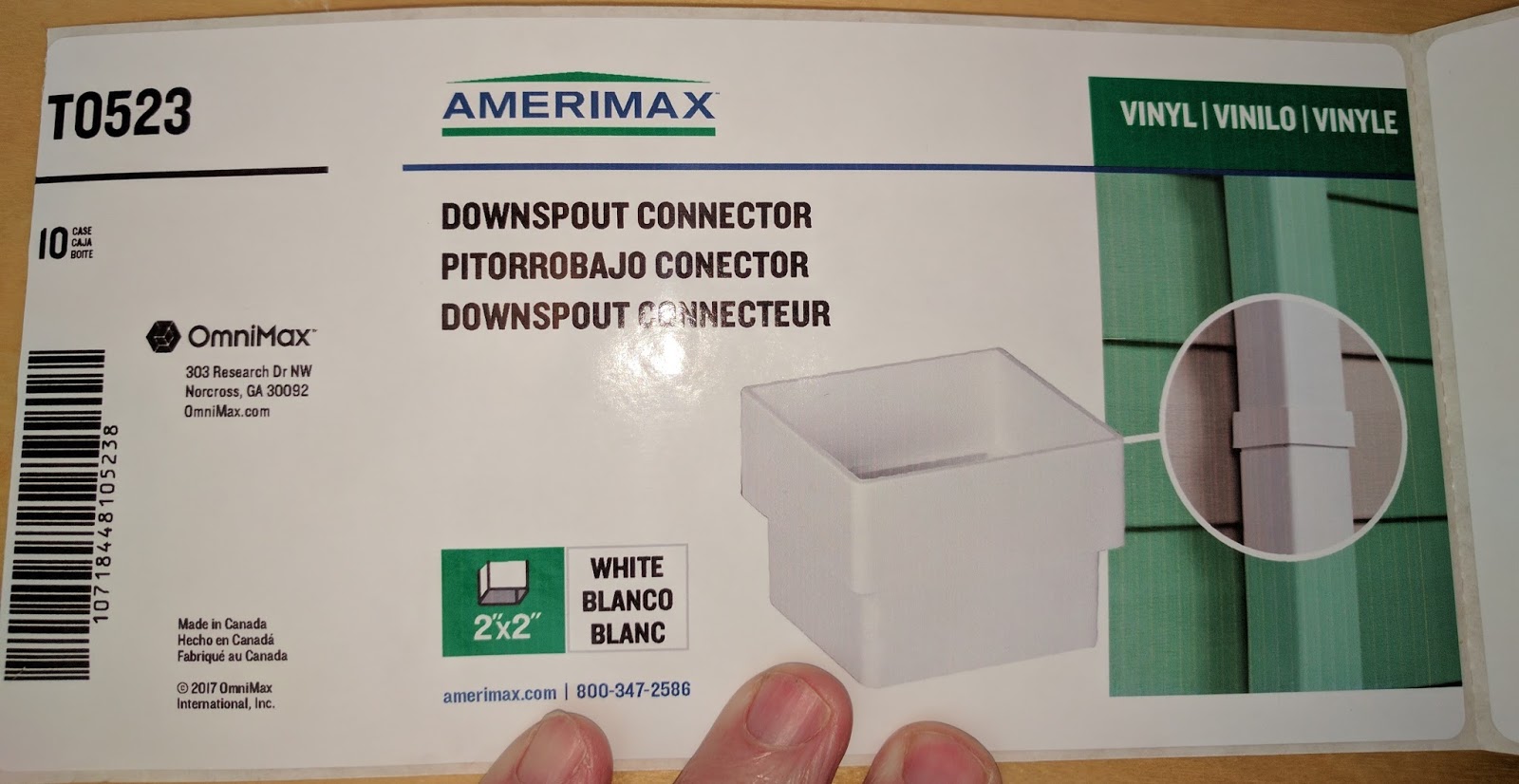
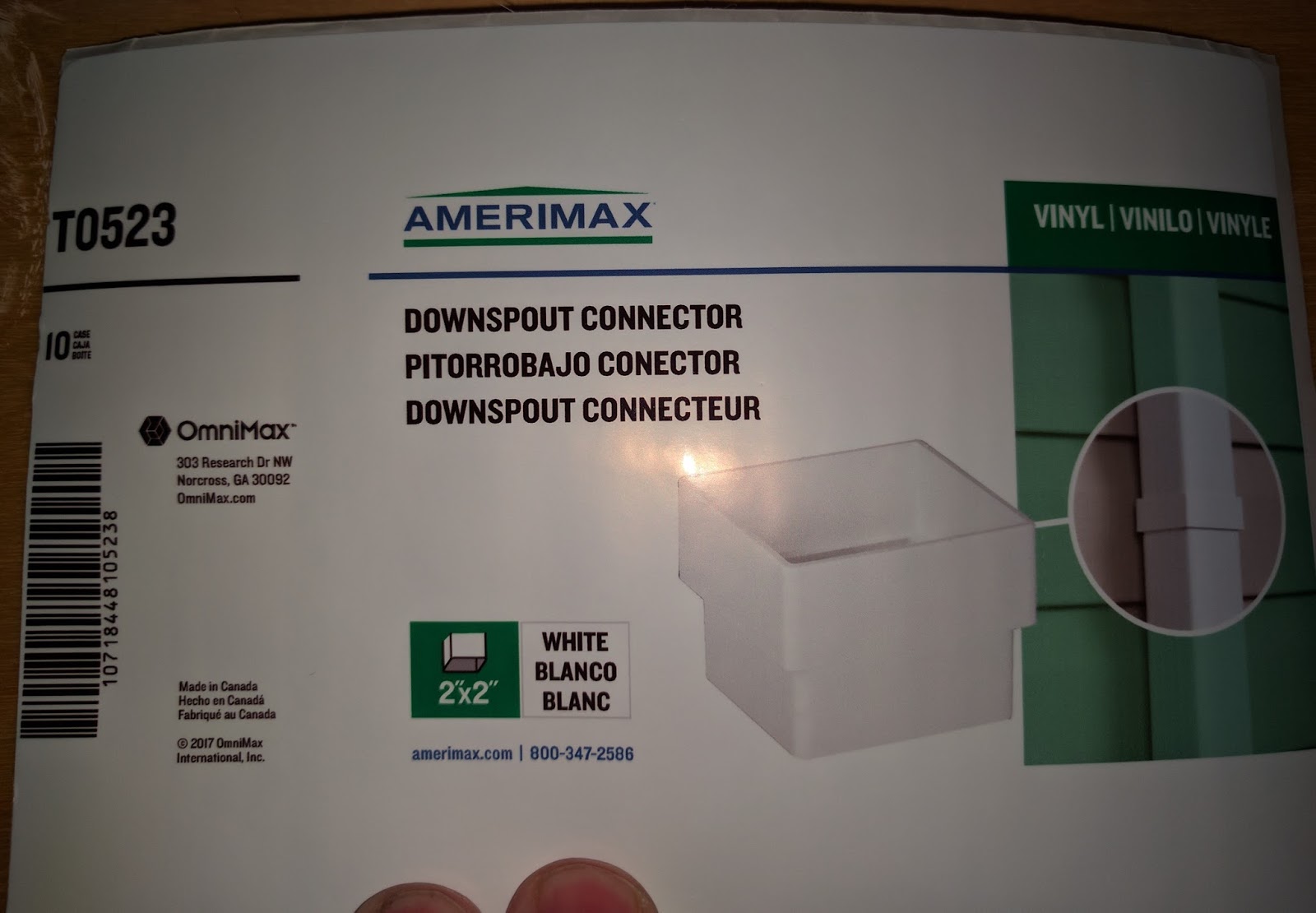
Second, the black ink came off the gloss paper I tried first.  Look at the barcode in the downspout label above.  As the black is a pigment ink, gloss is a harder match.  I tried our standard gloss paper; and it performed much better. The black ink did not smear.

L301 On Gloss Paper
L301 On Gloss Paper

And the gloss poly printed very nice.

L301 On Gloss Poly
L301 On Gloss Poly
And I found the gloss poly labels waterproof; I was surprised by this result.

L301 Water Resistant Gloss Poly
On the matte paper labels, I found the material printed OK using the standard settings.

L301 Printed On Matte Paper
Although both barcodes scanned, I though the print quality could be better.  The colors and text looked very nice, however.
On clear film, I thought they printed great.

L301 Black
L301 All Black on Clear Film

But the ink came off easily in water.  Not really an option.
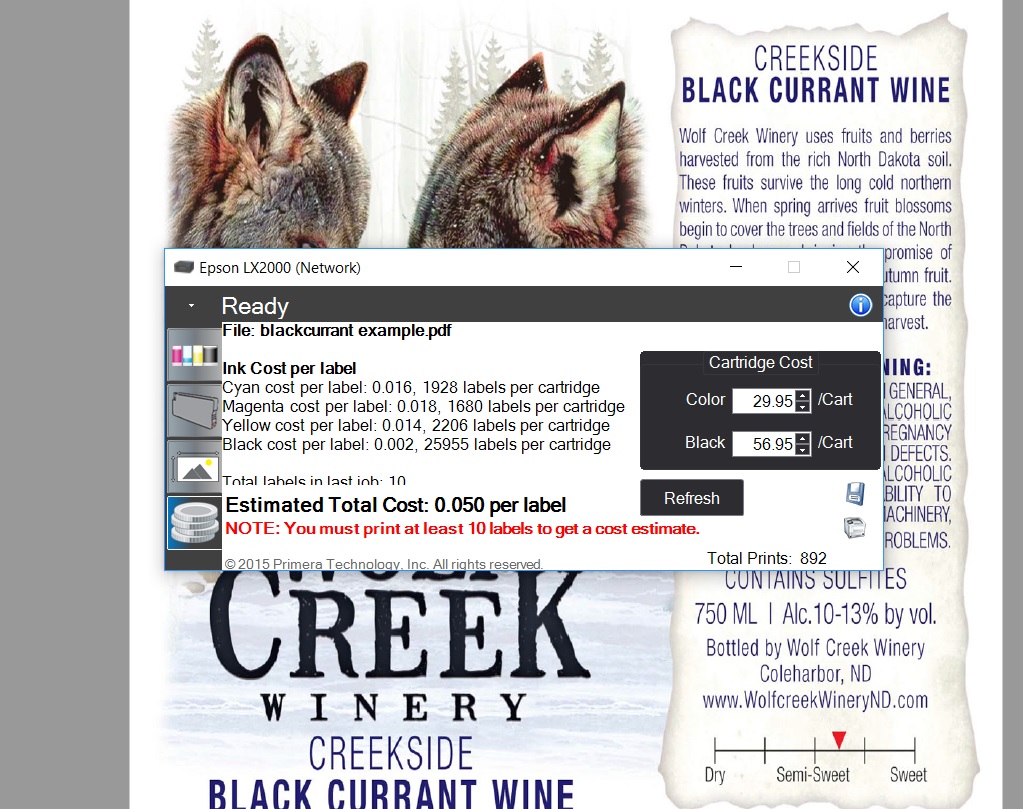
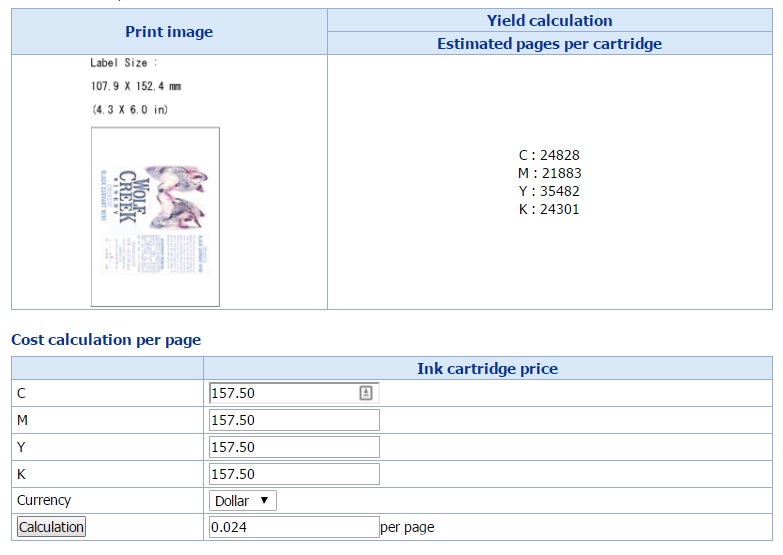
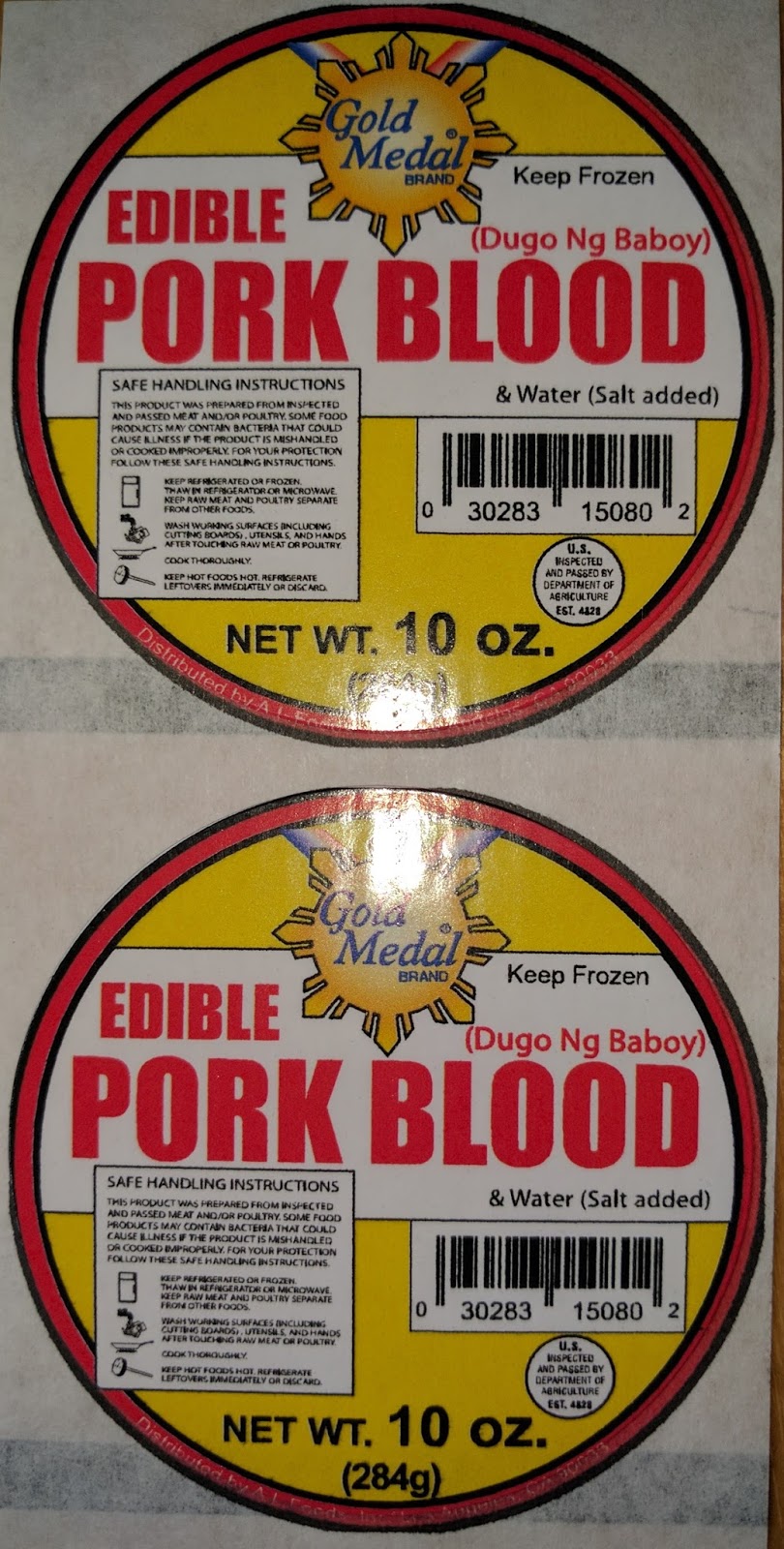
As for ink costs, the L301 is much more expensive than the C3500 or especially the C7500.   For example, this artwork at 5.5” wide would cost ~$0.14 to $0.16/label.

On the LX2000, the ink cost of this label would cost approximately $0.05.

LX2000 Ink Cost
LX2000 Ink Cost

And the ink cost would be only $0.024/label for the C7500G at 4.25” wide:


According to Mike Atkins, Sales Manager for Afinia, “The Afinia Label L301 Color Label Printer is perfect for small and growing businesses. By printing In-house and on-demand, you give your company the flexibility to change your labels as-needed; to accommodate branding, ingredient, or government regulation changes. Powered by an HP thermal inkjet printing technology, the L301 will work well for small businesses wanting to print labels on demand.”
For the positives, the L301:
  • Costs much less than competitive printers.
  • Makes label printing easy to do.
  • Prints great looking labels up to 6” wide.

As for the negatives, the L301:
  • Uses expensive ink.
  • Prints very slowly.
  • Does not offer a networking option.
  • Limits gloss media to selected options

Overall, I found the L301 as an affordable option to print low volume quantities of labels wider than 4.25” wide.  At $1,595, the L301 is under ½ the price of the LX2000; the competitive option.  You can purchase a lot of ink for $2,000+ dollars.  For those businesses printing 10 to 20 labels per day, who need wider than 4.25” labels and want to limit their investment, the L301 is a good option.
If you are interested in learning more about the L301 or any other label printer, contact us to discuss your requirements in detail.
Guy Mikel
855-962-7670
info@colorlabelsolutions.com

Filed Under: Label Printers Tagged With: Color Label Printers, Kiaro, Labels

Full-Bleed Label Media

February 20, 2017 by value

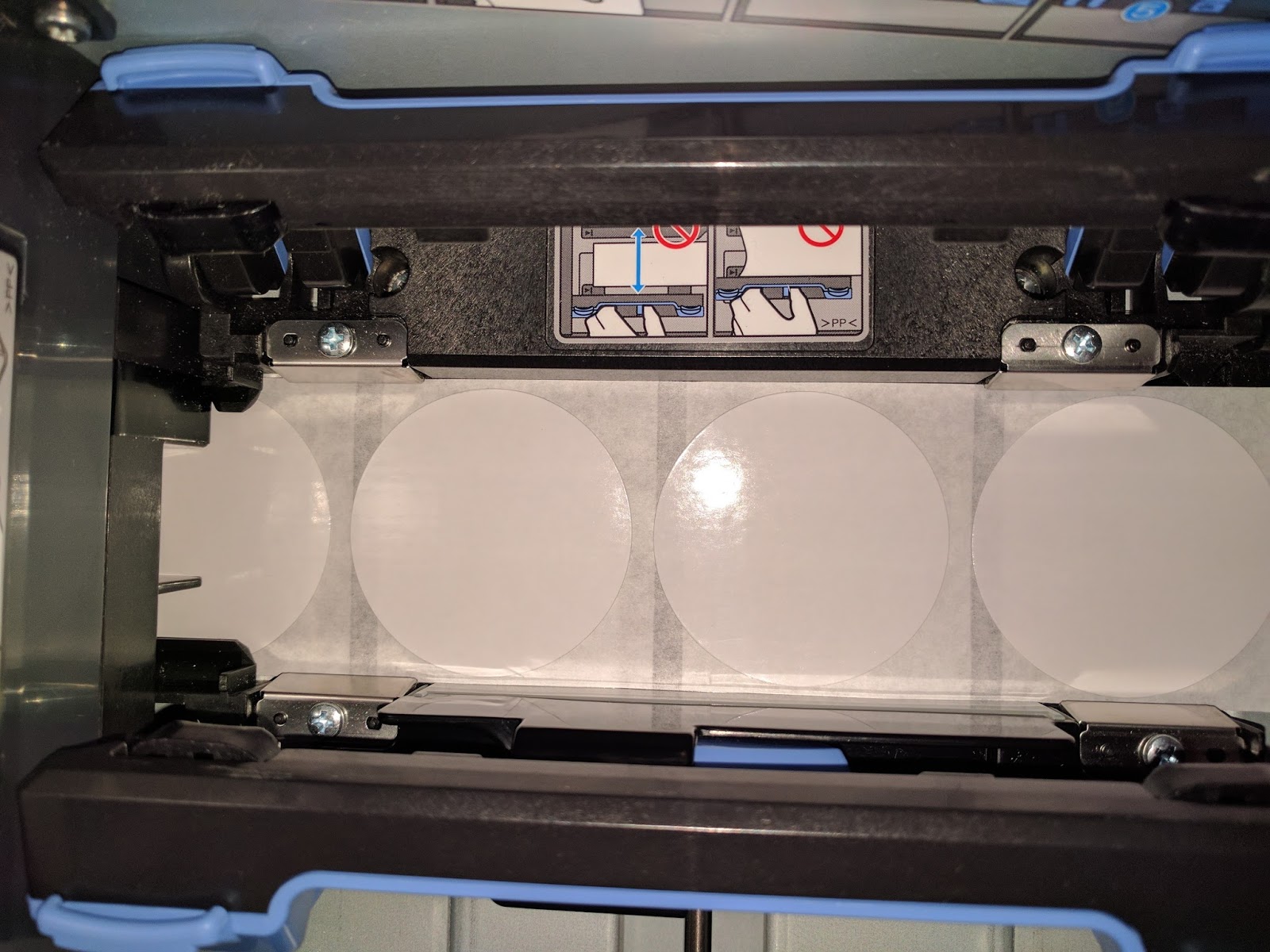
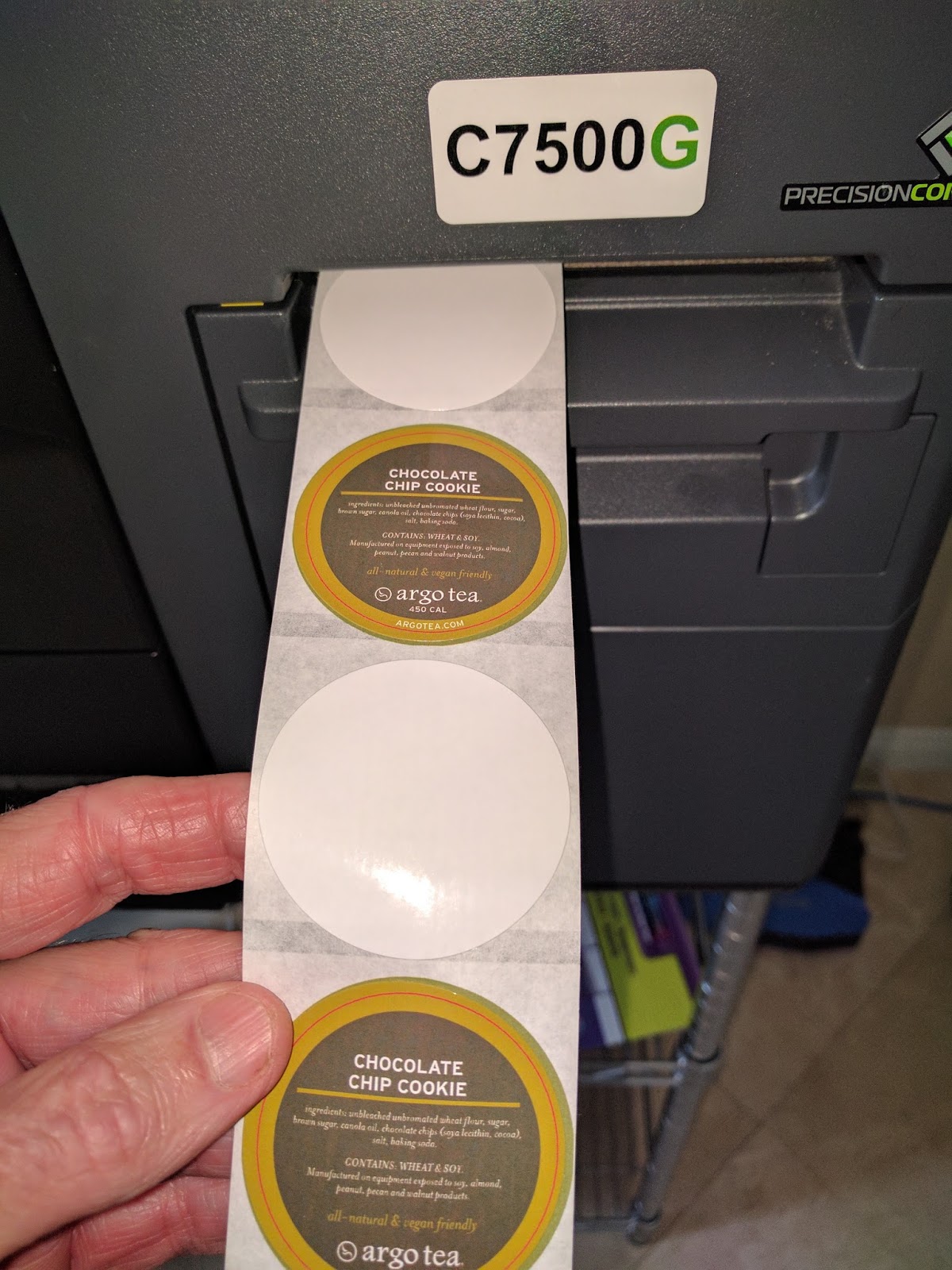
Color Label Solutions (www.colorlabel.solutions) is pleased to announce the availability of full-bleed specific labels.  With these new labels, you don’t have to worry about overspraying ink onto the liner; then transferring the excess ink to the labels.  With these labels, the ink dries immediately on the liner.

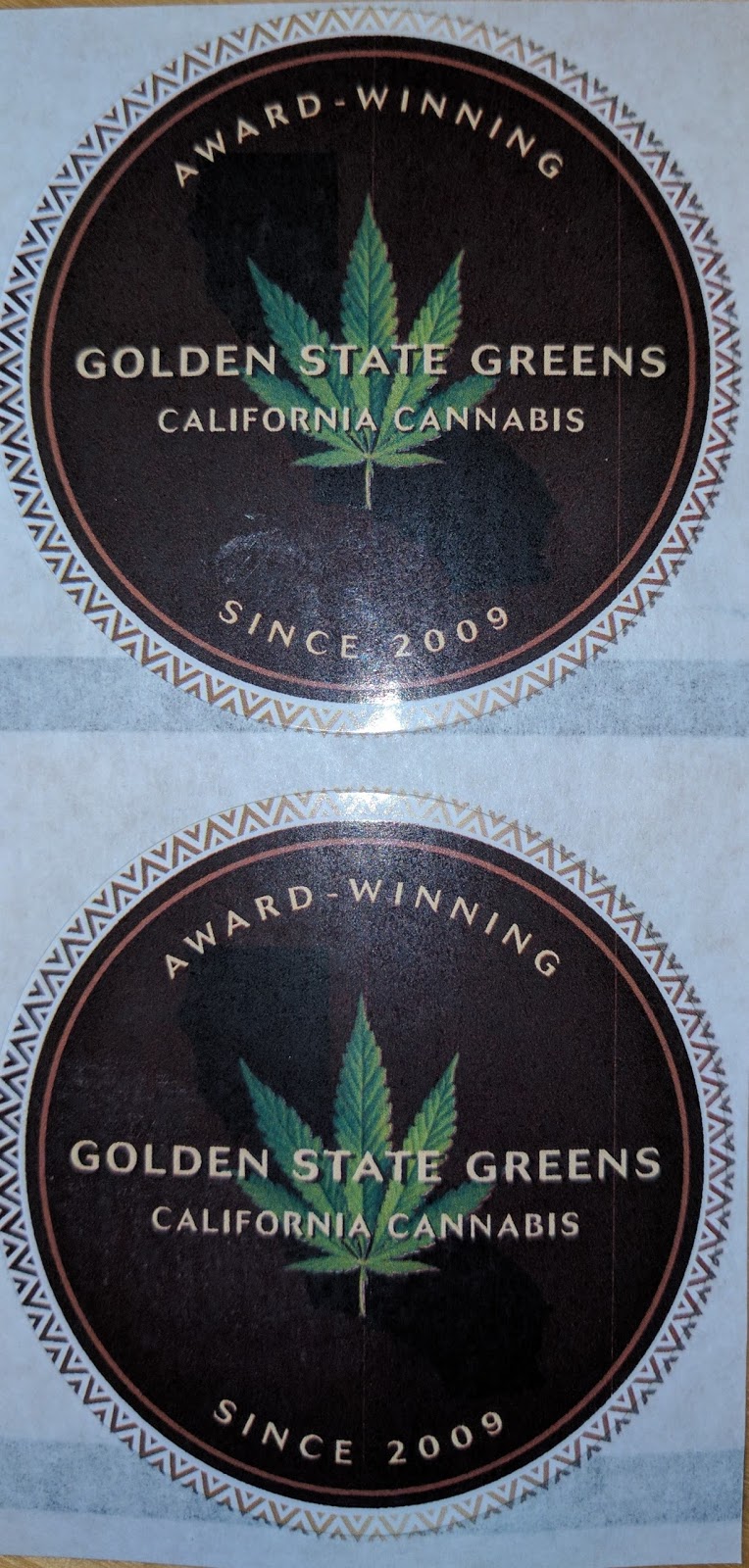
Full-Bleed Circle Labels
Basically, we now offer inkjet coated liners for your labels.  Just like your labels, ink dries immediately on the liners; making it much easier to print full-bleed. If you have ever gotten ink on your fingers while applying labels, then you’ll understand the benefits of this new liner.  The full-bleed specific labels are just easier to use.

C7500G Full-Bleed Circle Labels
To print full-bleed labels, I recommend generally the C7500 series printers.  These printers offer something no other color label printers have: precise media handling.

C7500 Media Handling
Media in other print on-demand color label printers may move slightly horizontally while printing; making it more difficult to print full-bleed.  With the media handling design of the C7500, labels don’t move horizontally; enabling better full-bleed printing.

C7500G Full-Bleed Label
To print full-bleed labels, I recommend the following:
*   Design your labels slightly larger (1/16”) than the actual size of the label.  This step is critical to get full coverage.  Most people send me files different than the actual size of label I have.  This difference makes it virtually impossible to print the label correctly.
*   Set the label size in the driver .03” larger than actual.  This adaptation helps insure the label is more likely to be completely covered.  If the driver is much-more larger than the actual size, you get skips and “head maintenance” in the printer.

Too Large Label Format Error

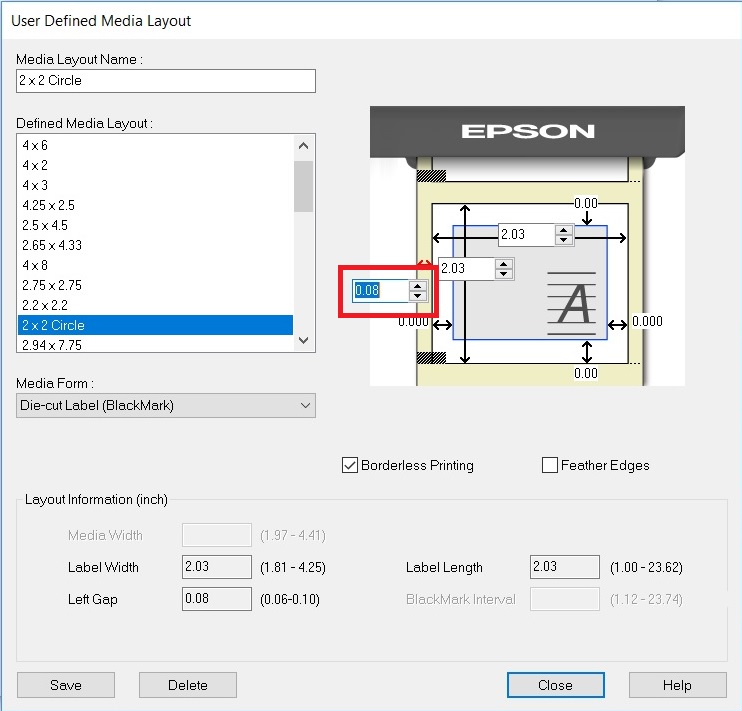
*   Use the narrowest edge of the label possible in the driver settings (0.06”) as the default is 0.08”:


C7500 Default Label Boarder Setting
This setting helps center the image on the template; especially important for circle labels.
If you print full-bleed, contact us to order the new labels designed for your application.  You’ll save time, money and hassle by moving to the new, full-bleed labels.
Guy Mikel
855-962-7670
info@colorlabelsolutions.com 

Filed Under: Label Printers Tagged With: Color Label Printers, Kiaro, Labels

WestPack 2017

February 11, 2017 by value

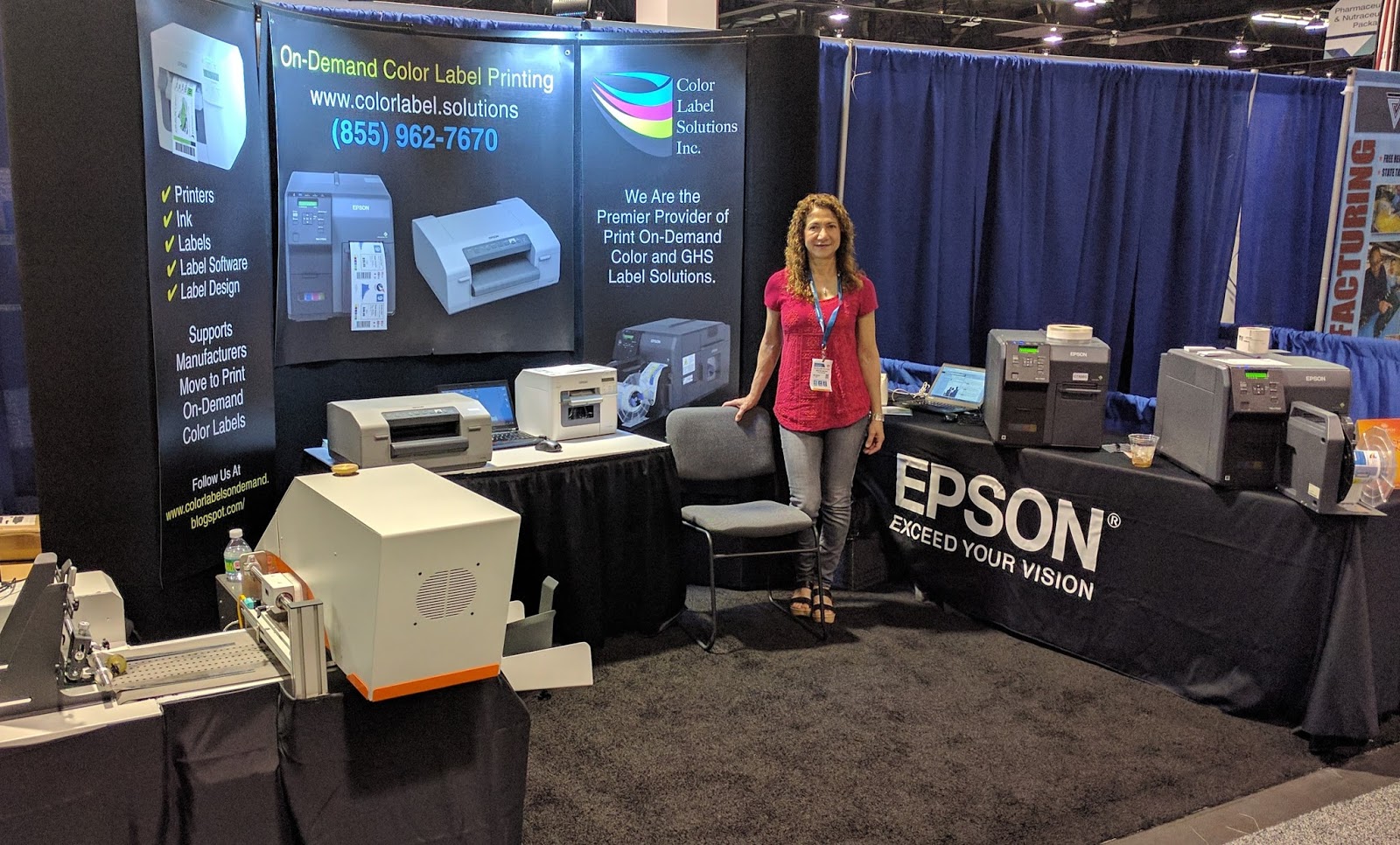
Color Label Solutions exhibited at WestPack (http://westpack.packagingdigest.com/) in Anaheim from February 7th to 9th again this year.

Beatriz Molina At WestPack
In addition to demonstrating the C7500, C7500G, the C3500 and the C831, we showed an exciting new item; the CMYK printer with the Fixed Thickness Feeder.  Now you can print coasters, coffee sleeves, bags, cards, corrugated boxes and any number of thick items on-demand in color.  Watch us print here: https://youtu.be/r9PC9puLeYM

The CYMK printer is the perfect income producer for printers and manufacturers who want to print thick paper and other inkjet-coated items.  The CYMK printer and feeder ushers in a new age of on-demand printing, enabling many more personalized items at a much lower cost and labor requirement.

CMYK Printed Coaster
For the first time at the show, we demonstrated the 8” version of this printer.  You may remember, we demonstrated a 4” version at WestPack for folded corrugated boxes:

https://www.youtube.com/watch?v=EHtUlpGk9SY

And erected corrugated boxes at EastPack last year:

https://www.youtube.com/watch?v=WgIBSxmPAOU

In addition to the new 8” version, we’ll release a new RIP (raster image process) for the CYMK printer next month.  This new RIP will enable better, higher resolution printing with more image and color control.  Look for more information shortly.
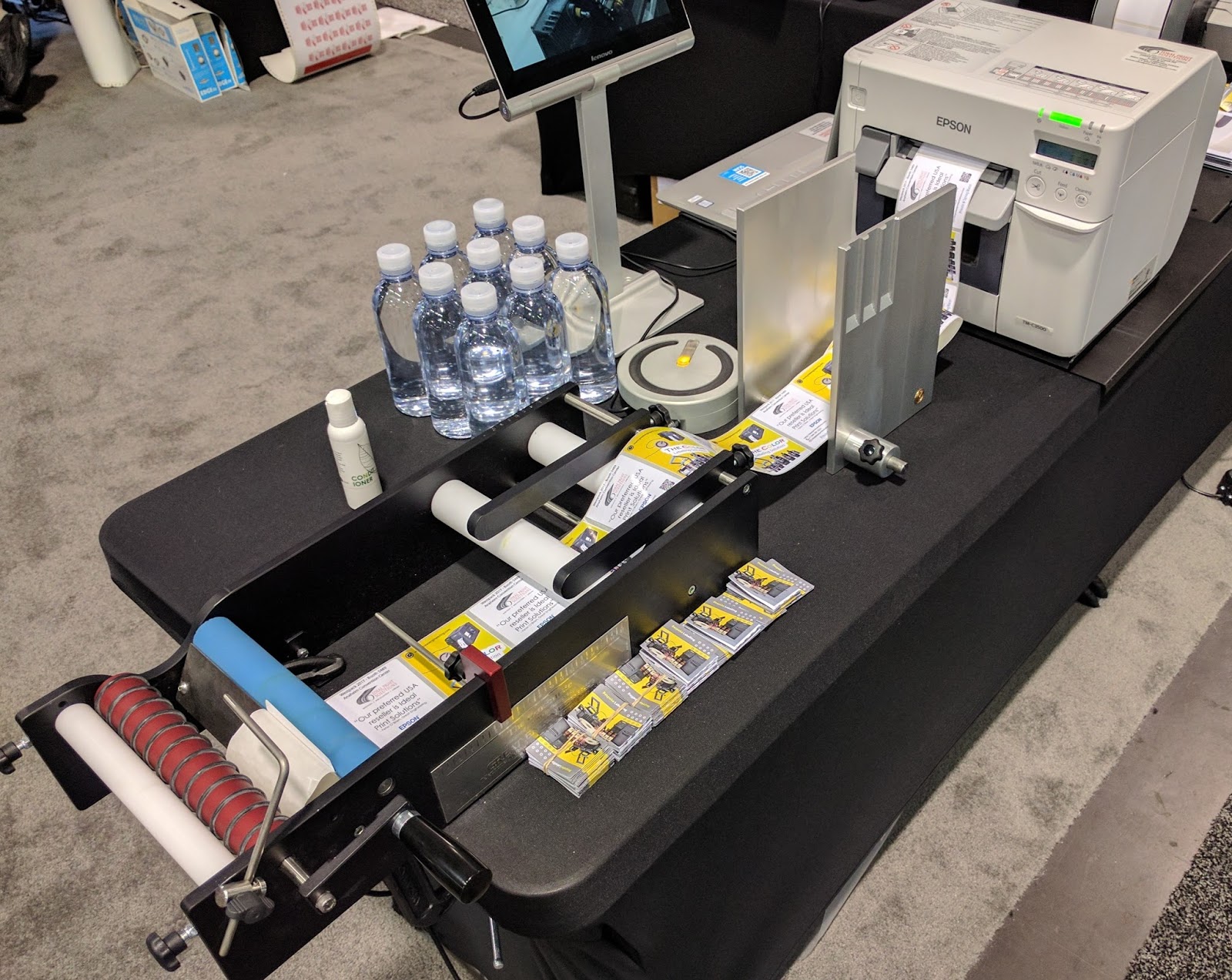
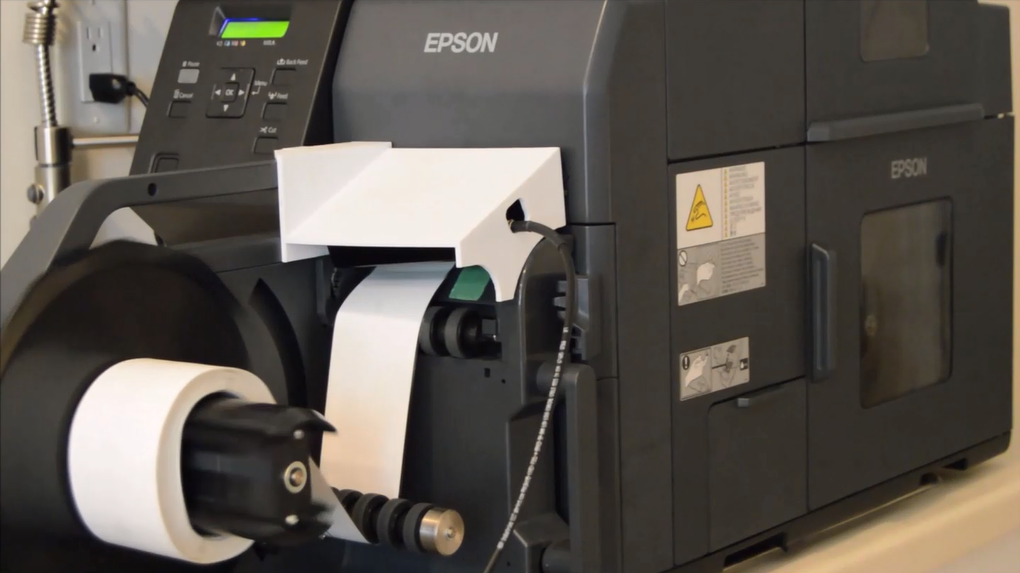
In addition out the new CYMK printer, we saw in-person a new item we’ll begin selling next month; the BenchMax round container applicator integrated with the C7500 and C3500 printer:

C3500 Integrated With BenchMax Applicator
This new applicator launches next month once the Interface devices receives approval.

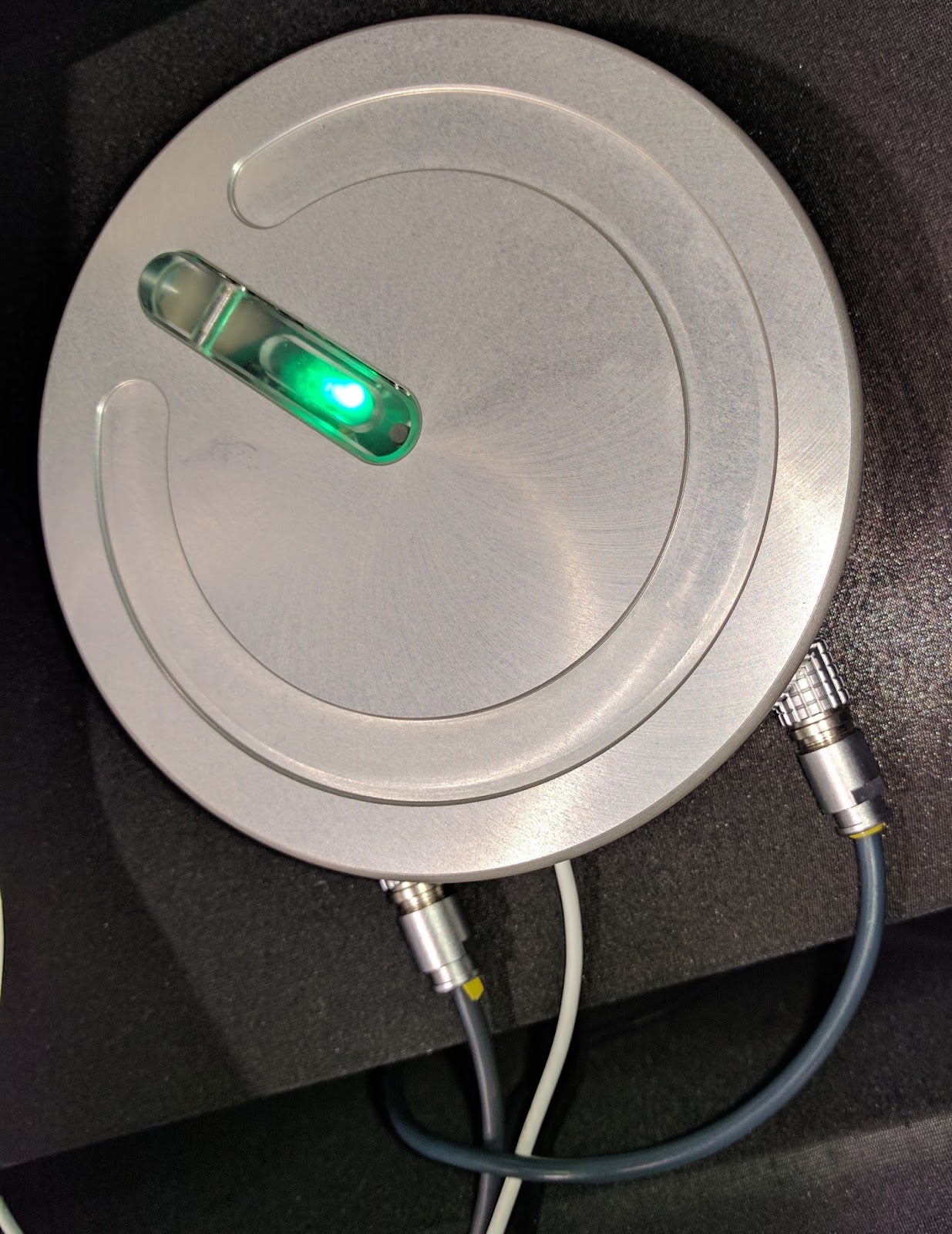
BenchMax Interface
BenchMax  Applicator Interface
The Interface sets between the printer, applicator and the computer; managing the print jobs based on the output of the applicator.  You can watch the C7500 with the BenchMax here:

http://greatengineering.com/epson-printers/

At approximately $10,000, the BenchMax is the most affordable round container applicator available that is integrated with the C7500 and the C3500 label printers.  This unit is perfect for chemical, food, beverage or other manufacturers with round containers that want to apply labels more productively and accurately; in the same position every time.
In addition, I learned that the BenchMax could be configured with a Thermal Transfer printer to apply over-laminate on labels produced by the C7500.  With this system, you can use much less expensive materials; and then apply over-laminates to add durability and a glossy look.  It’s an elegant solution to a common requirement.
Finally, I saw the Swiftcolor 4” color label and tag printer print and cut great looking tags on-demand.

SwiftColor Printed Tag

Watch the Swiftcolor print/cut 20 4” x 1” tags in 4 seconds here: 

https://youtu.be/s-PH4jtfPT4

The Swiftcolor printer is perfect for apparel manufactures who need to print tags and care labels on-demand and in-color.
I’m very excited by the prospects of the new 8” CYMK printer with the Fixed Feeder, the BenchMax integrated with the C7500 color label printer and the Swiftcolor printer for apparel tags.  If you are a printer, the CYMK printer and Feeder are the prefect addition to your production assets.  If you use round containers and want to print color labels on demand, the BenchMax applicator is a great new option for you.  And if you are an apparel manufacture, the Swiftcolor printer offers a new capability to produce great looking tags on-demand and in color.  Contact us to learn more about these valuable new machines.
Guy Mikel
855-962-7670
info@colorlabelsolutions.com

Filed Under: Label Printers Tagged With: Color Label Printers, Kiaro, Labels

Cannabis Label Solutions

February 5, 2017 by value

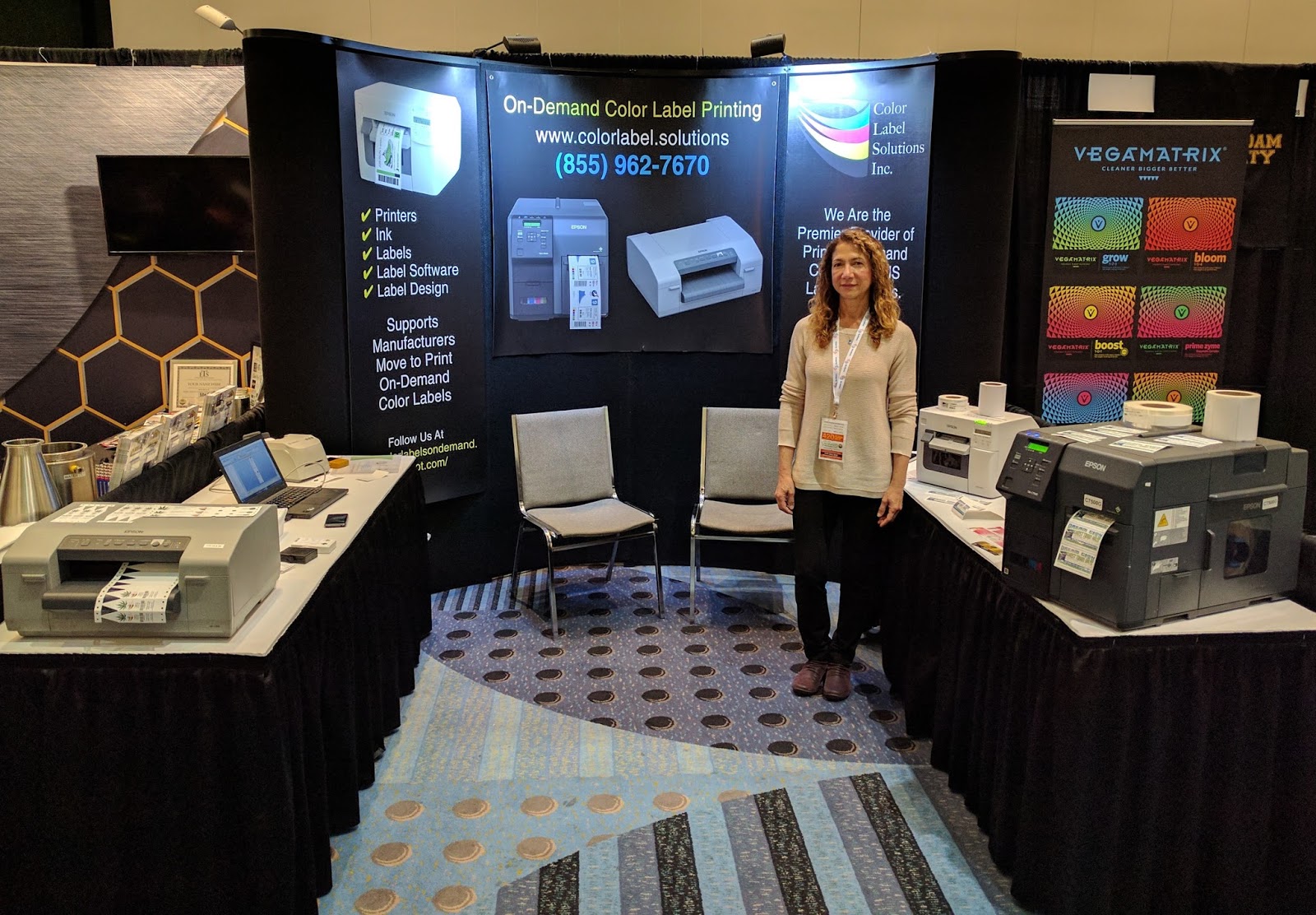
On January 31st and February 1st, 2017, we exhibited at the Seed To Sale Show (http://www.seedtosaleshow.com/denver-2017/)  in Denver, CO; the national show focused on innovative best practices, science, and cutting edge technology in cultivation, processing, and sales strategies for the cannabis market.  Over 2,000 people attended; and many came to our booth.

Beatriz Molina of Color Label Solutions at the Seed to Sale Show
During this event, we demonstrated several technologies, some of which are new, that fit the cannabis market.  I’d like to recap the technologies we showed.
During the show, the C7500G received the most interest; especially the great-looking labels we were printing on gloss poly.


Gloss Poly Label Produced By A C7500G
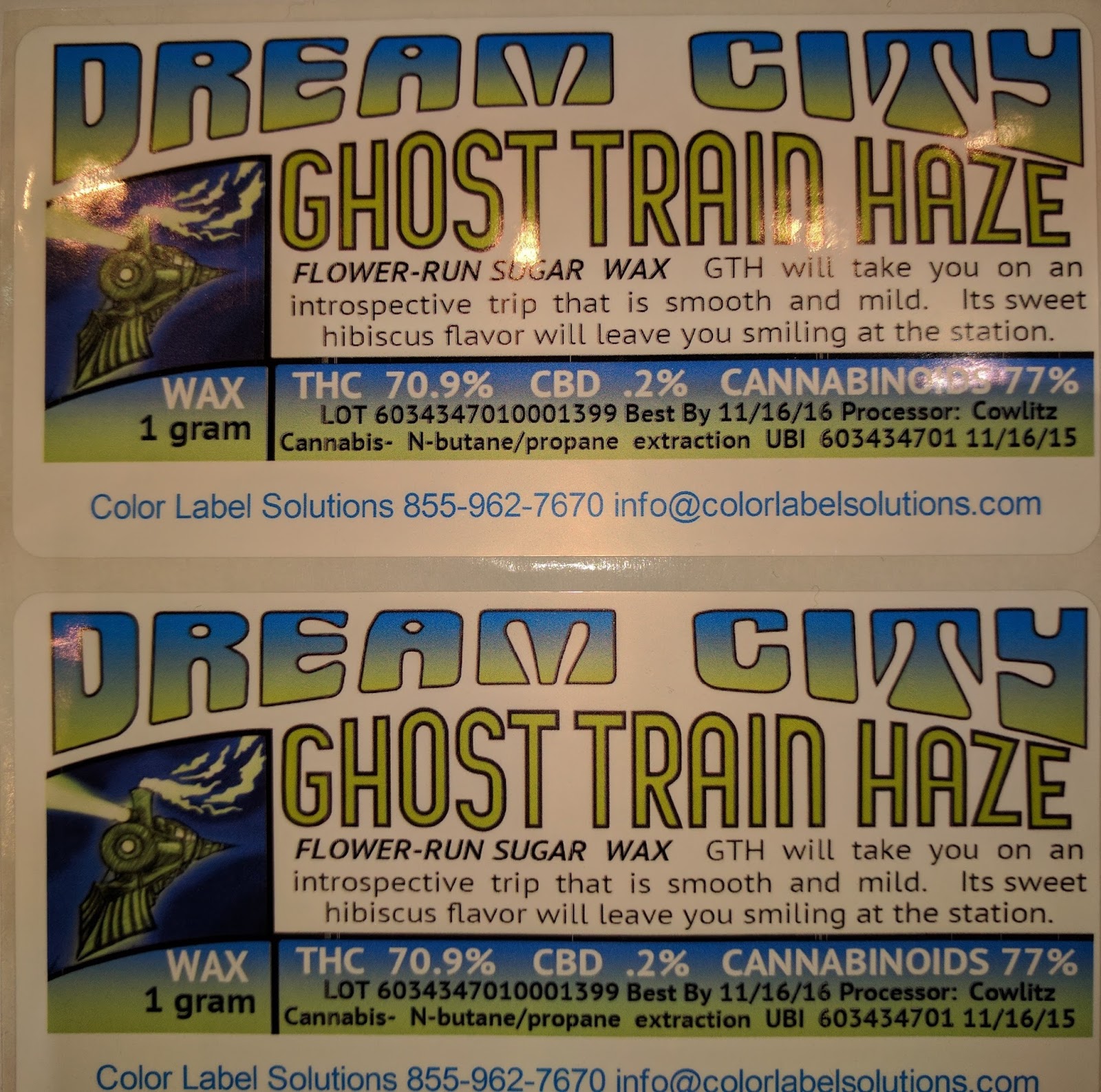
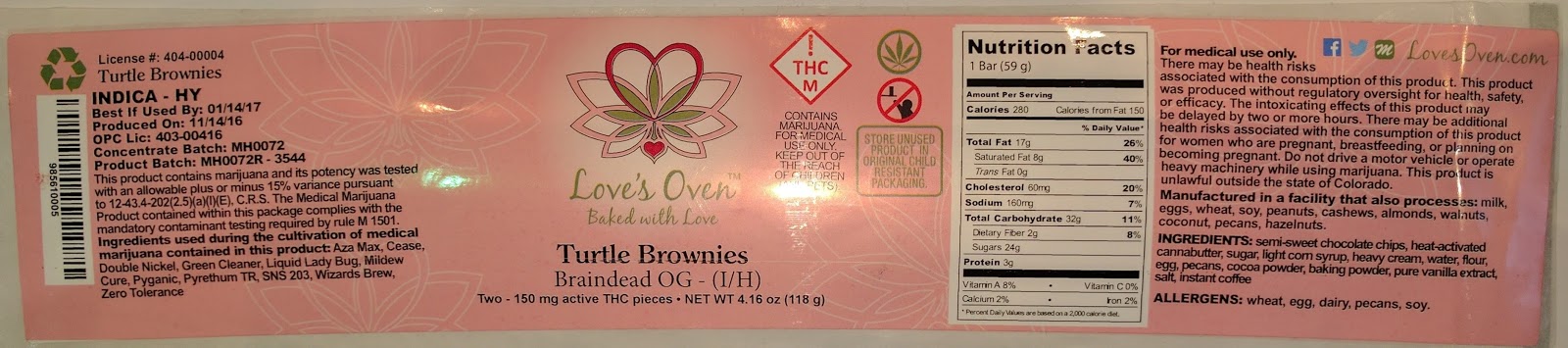
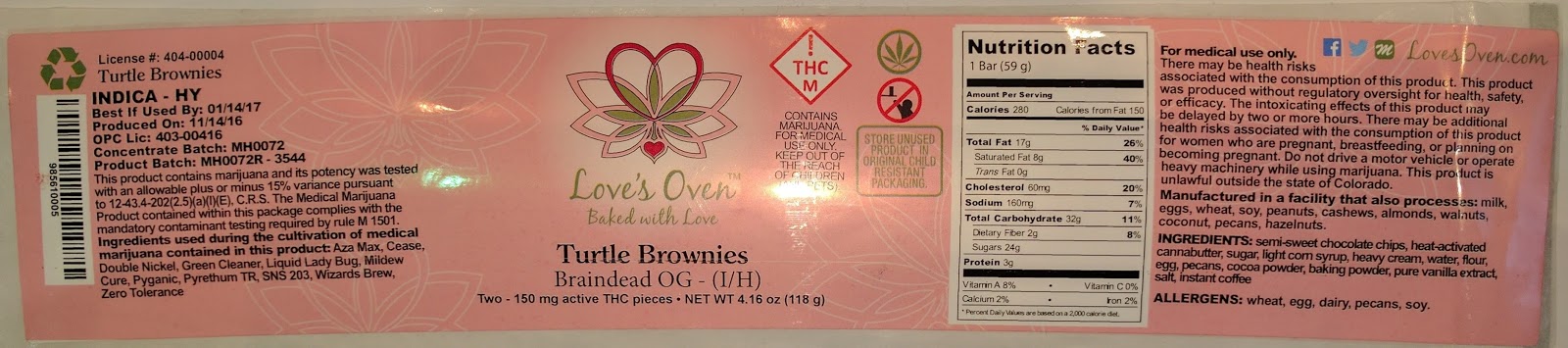
For manufacturers of products, the C7500 produces the great looking labels needed for the cannabis industry.  Brands are very important; pushing manufacturers to use premium looking labels.  As regulators require the identification of items in the cannabis industry, the C7500 allows the printing of labels with variable data, simplifying the production process.  Look at the label with variable data on the left side produced by one of our customers in the Denver area:

C7500G Color Label with Variable Data
This label looks beautiful; in large part by the designer.  The C7500 color label printer is quickly becoming the standard label printer for the cannabis industry.
In addition to the C7500, we showed, for the first time, the ClariSafe Dispensing Color Label Printer.

ClariSafe Dispensary Printer

With it’s very small footprint and very affordable price, the ClariSafe label printer is perfect for prescription labels at checkout.  This printer produces labels up to 2.25” wide with sufficient print quality, one-at-a-time, with text, barcodes and color images like the THC icon:

At $899.90, the ClariSafe Label printer is affordable; especially given it comes with BarTender Basic for designing and printing labels.  Consider adding the ClariSafe Color Label Printer in your dispensary; your budtenders will love it.
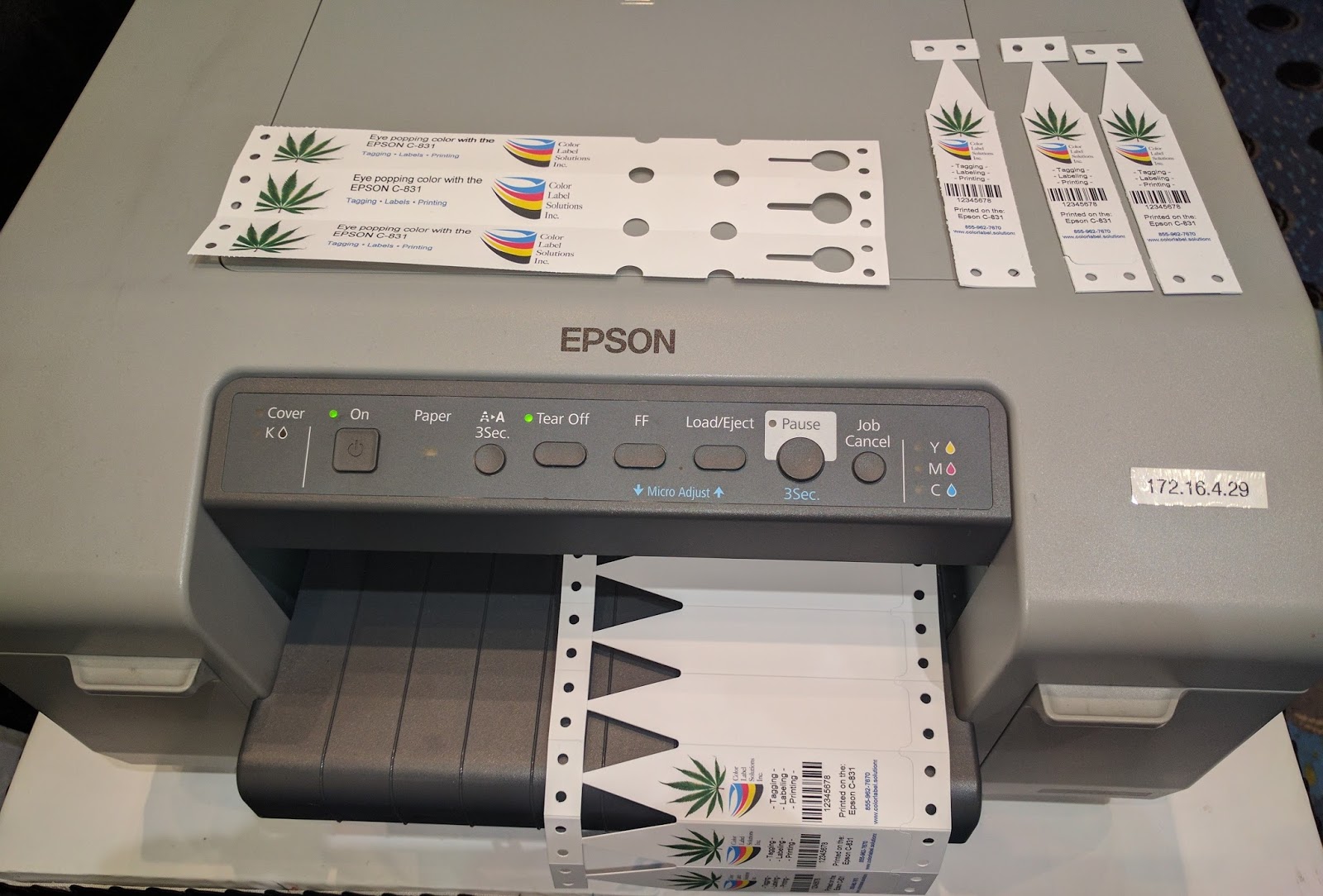
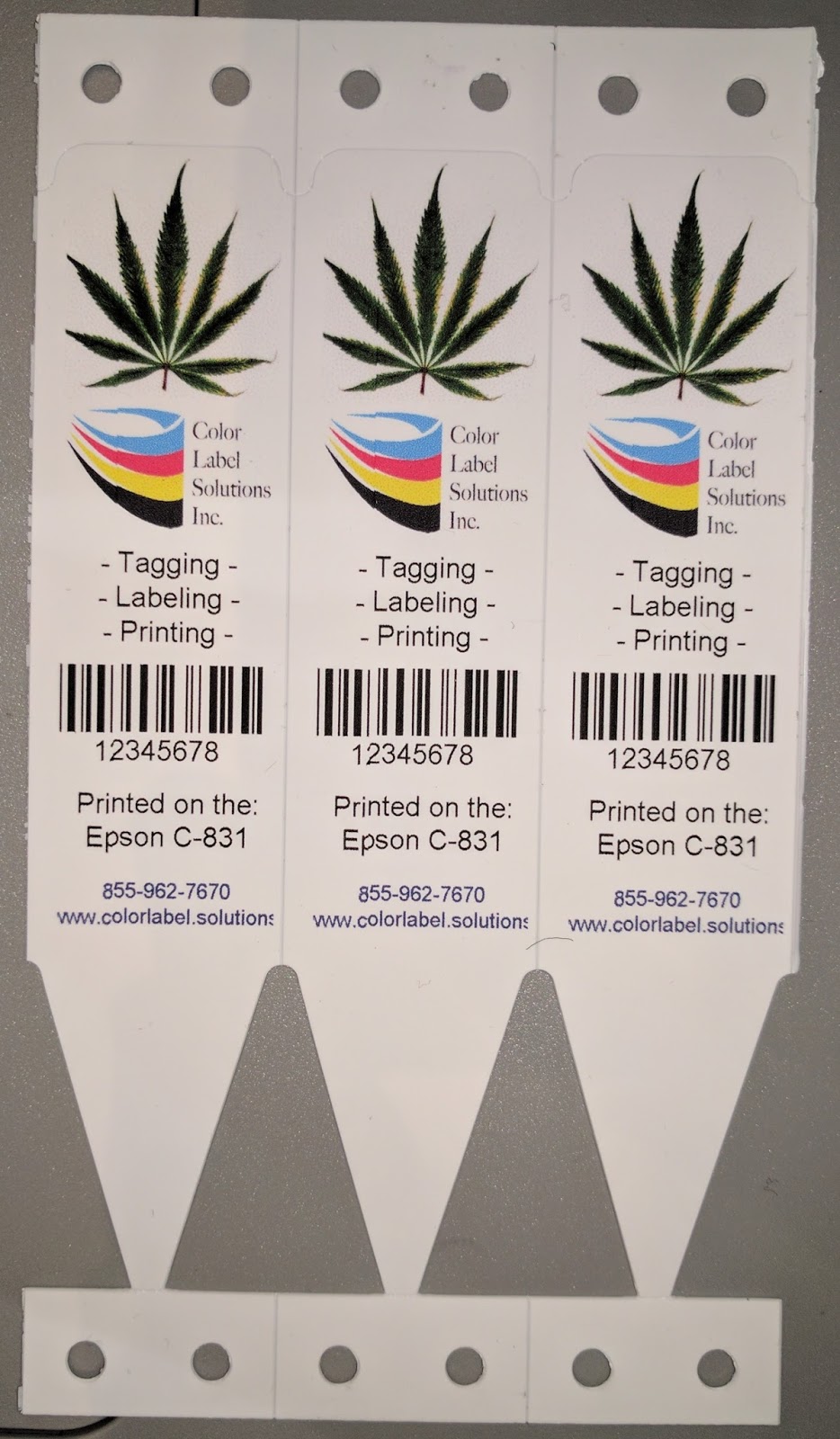
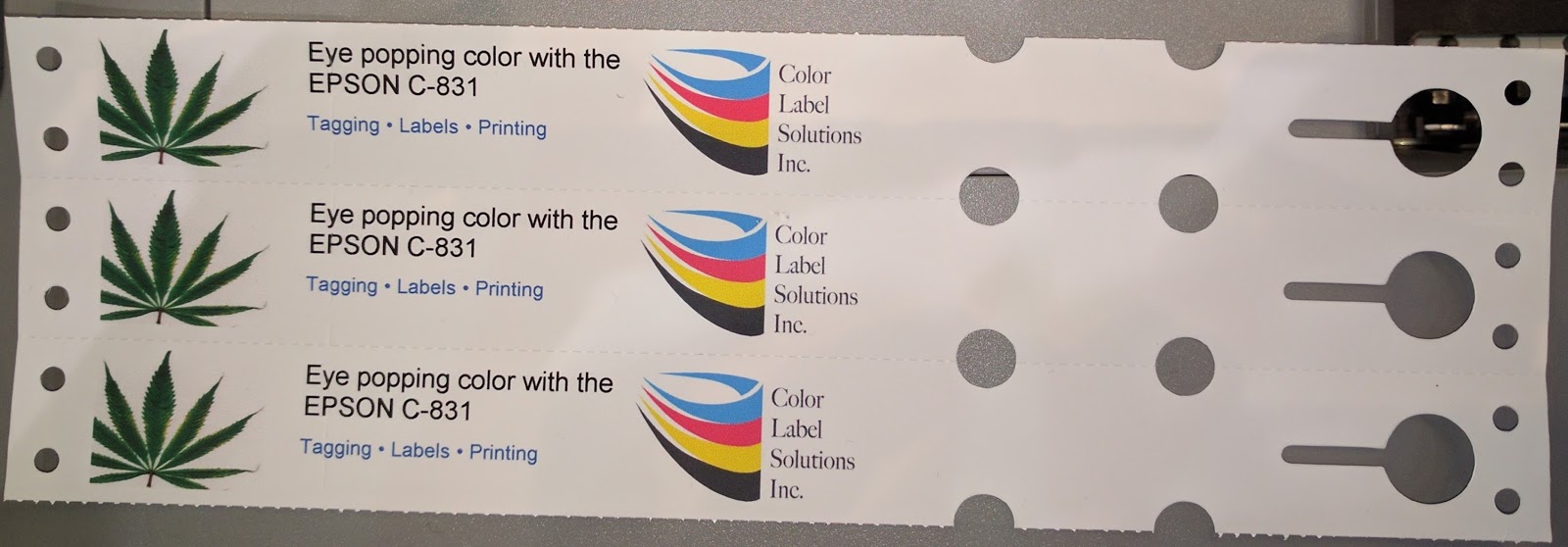
In addition to the new ClariSafe printer, we showed the C831 printing pot stakes and plant wraps in color and on demand.

C831 Color Pot Stakes and Plant Wraps
Now you can use color in your growing operations to identify strains or communicate dates, for example.

Color Pot Stakes
Color Pot Stakes

Plus, they stakes and wraps are very durable, lasting throughout the life cycle of the plants.

Color Plant Wrap
Color Plant Wrap
Color can become a great new tool for your growing operation.
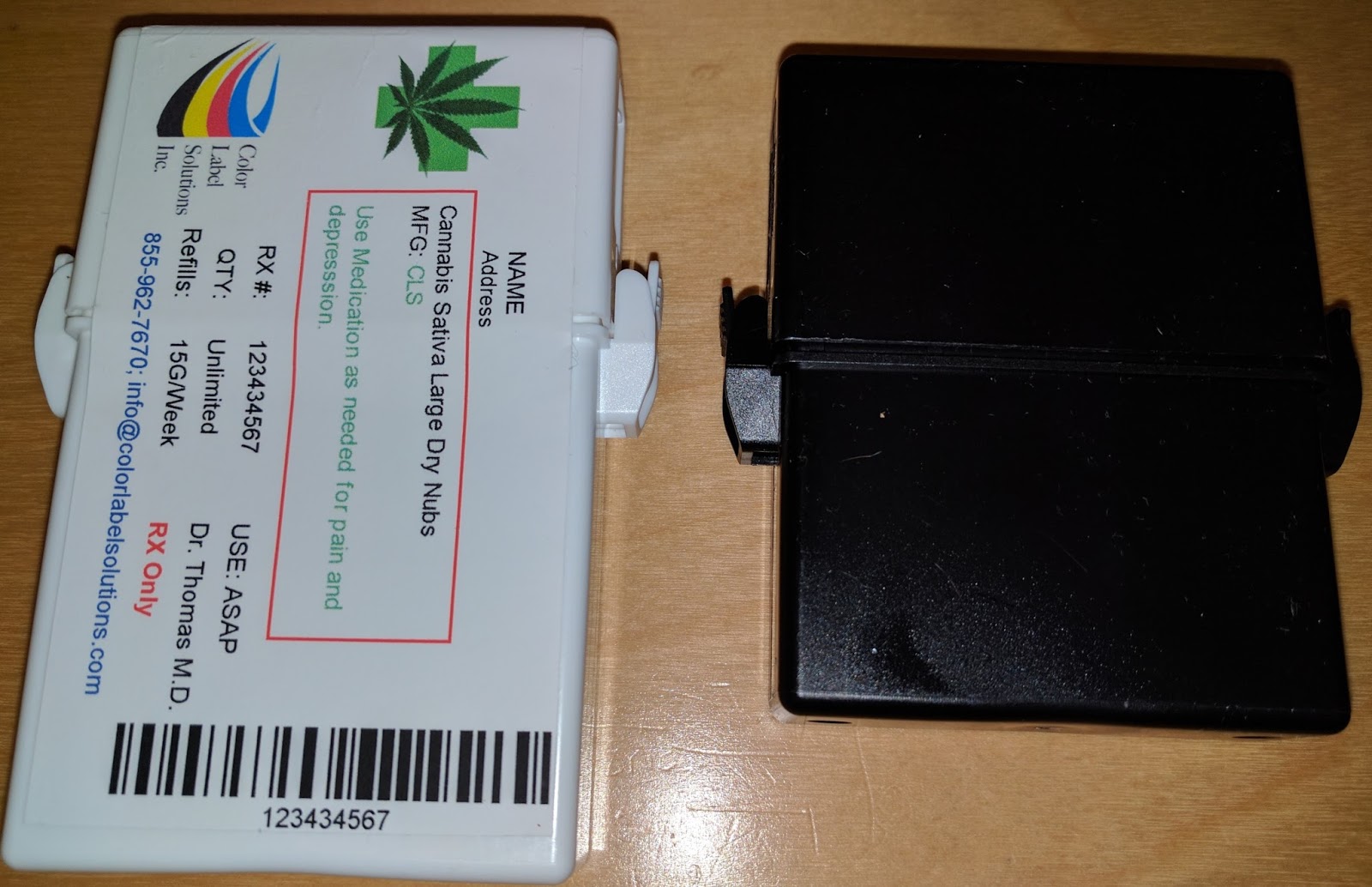
Also, we showed the MPack vial; the first new pharmacy vial since the 50’s.

MPack Child Resistant/Tamper Evident Packaging

This packaging is perfect for edible products, where child-resistant and tamper-evident packaging is required.  The clips on the sides of the MPack are relatively easy for adults to open.  And with the addition of our label, the MPack becomes tamper evident.  If you’re looking for child resistant, tamper-evident packaging, contact us to discuss.
Finally, we started using our new URL just prior to the show: www.cannabislabel.solutions. Check out our new page.
The Seed To Sale Show was a valuable experience for us.  If you could not attend this tradeshow but see something of interest, contact us to discuss how these tools will fit into your operation.
Guy Mikel
855-962-7670
info@colorlabelsolutions.com

Filed Under: Label Printers Tagged With: Color Label Printers, Kiaro, Labels

Fast, Colorful, RFID

January 26, 2017 by value

FlexStr8, Inc. (www.flexstr8.com) develops, manufactures, and markets integrated smart label systems, smart labels, encoders, and NFC software. Through continued research, new product development, and innovative manufacturing, they provide high quality cost effective technical solutions for our worldwide customers. 


In 2015, I wrote about Flexstr8’s NFC encoder working with the C3500:  http://colorlabelsondemand.blogspot.com/2015/07/nfc-in-color.html

Since this last post, FlexStr8 has launched a thermal transfer NFC encoder/label printer with the Zebra GC420T:  http://www.flexstr8.us/bwencoder/ 

 And a temperature logger: http://www.flexstr8.us/smarttemp/.  This temperature logger is very “cool”!

Now I’m excited to tell you about a new product; that encodes UHF RFID labels at 11” per second.  Watch the C7500 encode and print color labels here: https://www.youtube.com/watch?v=IhnYbLU649s


According to Ralph Roessler, President of Flexstr8, says “Initially, developing a system to encode and print color labels using the C7500 was not on our development path.  But a company approached us to develop a solution for them using UHF RFID tags, which could be printed in color and on-demand.  After some thought, we decided to move forward; and quickly.  We’re very proud of our solution.”


C7500 Encoding RFID Tags
Ralph continues, “As the printer runs at 11” per second, we needed a system not only to encode and print at that speed; but also identify the bad RFID tags without stopping the printer. By adding a reader antenna near the unwind station and another antenna after the print head, we could read, encode, print and skip a label if required due to a bad tag.  Bad tags do happen; probably around 1% of the time.  We needed to be able to identify the any tags that should not to use for tracking.”
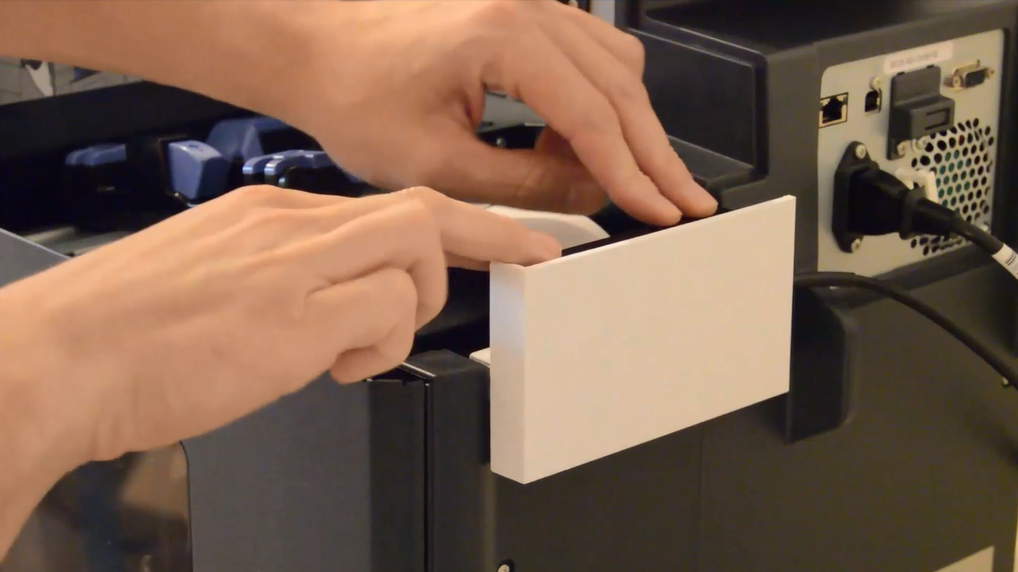
According to Eric Casavant, FlexStra8 Product Engineer, “we designed this system to be incredibly easy to use.  The system snaps onto the 7500 in a few seconds; then upgrades the device into a print on-demand color RFID printer.”

C7500 Pop-In RFID Encoder
With my history with UHF RFID labels, I see an opportunity for the use of these tags/labels in apparel.  RFID in apparel has grown significantly in size over the last few years.  According to this article, nearly 4 billion RFID tags were used in apparel in 2015:  http://www.supplychainbrain.com/content/latest-content/single-article/article/retail-apparel-industry-taps-rfid-for-inventory-accuracy/.   A perfect application for the C7500 and RFID tags/labels.
After the initial work with the C7500, Flexstr8 has found two other interesting applications. Ralph says, “GHS labels for time and temperature sensitive chemicals is a natural RFID market; especially with the requirement to print colored pictograms.  RFID helps users track and locate time and/or temperature sensitive compounds easily and quickly.”
Ralph continues, “We also see a new market for identifying individual cannabis plants.  With our RFID encoded tags, growers can track individual plants; and especially cloned plants.  With RFID, you can identify and track individual plants; which is required in certain states.  Color coding and potential marketing benefits is important with the capability to print in color on tags and labels.”
If you see a market for this fascinating new technology, please share with me your thoughts.  If you have a need to track items quickly and easily using on-demand color labels, contact me to discuss this new solution from FlexStr8.
Guy Mikel
855-962-7670
info@colorlabelsolutions.com

Filed Under: Label Printers Tagged With: Color Label Printers, Kiaro, Labels

MIL-SPEC Color Labels

January 16, 2017 by value

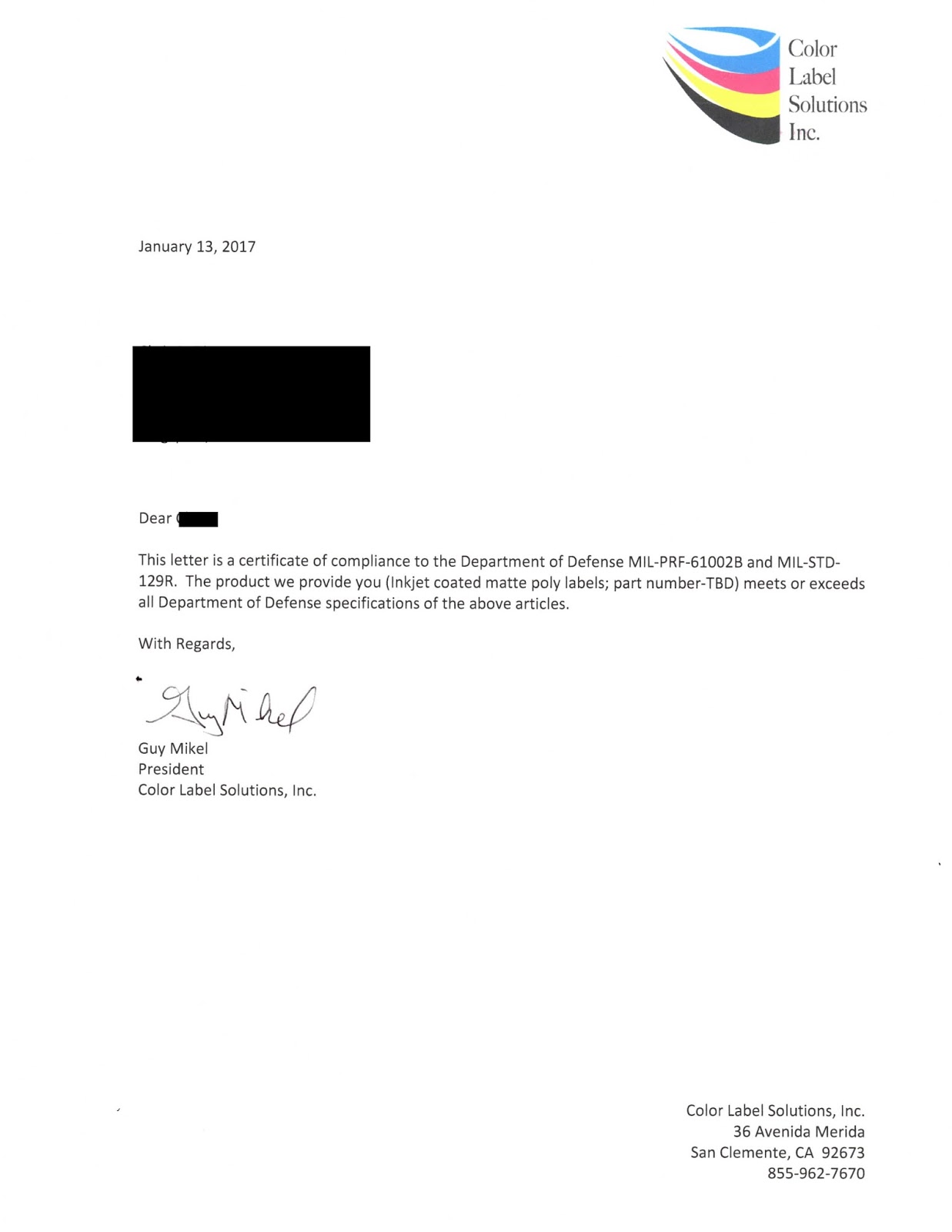
I am pleased to announce that Color Label Solutions now offers print on-demand color labels that meet MIL-PRF-61002B and MIL-STD-129R.


Inkjet Coated, Color, MIL-SPEC Compliance Letter
Inkjet Coated, Color, MIL-SPEC Compliance Labels
If you don’t know these specifications, MIL-PRF-61002B comes from the Department of Defense and covers the requirements for pressure-sensitive adhesive labels that meet or exceed the end user’s necessary performance criteria for use in the implementation of bar code marking/reading operations.  Obtain this MIL-SPEC here: http://metalphoto.com/wp-content/uploads/downloads/2015/03/MIL-PRF-61002B.pdf

MIL-STD 12S9R comes from the DOD as well; and provides the minimum requirements for uniform military marking for shipment and storage. Obtain this MIL-SPEC here: https://vsc.gsa.gov/administration/files/MIL-STD-129R.pdf

Up until now, most companies were required to use thermal transfer printers to comply with these standards involved with shipping products to the DOD.  In fact, you’ll find direct mention of this printing technology in both documents.
However, one of our customers came to us wanting to switch from thermal transfer (specifically the Zebra 170Xi4 6” wide and 220Xi4) to inkjet printed labels.  He wanted to make this switch after using the C831 printers to produce GHS labels.

C831 Label Printer
C831 Label Printer
We have a lot of posts on using the C831 printer to produce GHS labels:

http://colorlabelsondemand.blogspot.com/2015/09/apprehension-good-design.html Ranger Distribution

http://colorlabelsondemand.blogspot.com/2015/01/ghs-needs-erin.html Engineered Lubricants

http://colorlabelsondemand.blogspot.com/2015/01/dyeing-for-ghs.html Pylam Products

According to our customer, four reasons make the C831 printer a better option than wide thermal transfer printers for printing DOD labels.  First, printed labels are evaluated by the Department of Defense (DOD) to insure they meet the standards.  Ribbon wrinkle, which happens when the thermal transfer printer ribbon does not feed correctly, happens occasionally producing a barcode with streaks.  These streaks may make the barcodes not readable.  When this occurs, the DOD may reject the shipment, costing suppliers to the DOD a great deal of money.  With the higher print resolution (760 x 360 versus 203 or 300 dpi for thermal transfer printers), the C831 printer eliminates the risk of ribbon wrinkle. 
Second, changing ribbons can be a pain with thermal transfer printers.  According to our customer, their operators hate to change ribbons.  Watch the process to change ribbons in a Zebra 170Xi4:

https://www.zebra.com/us/en/support-downloads/printers/industrial/170xi4.html

 Comparably, changing ink cartridges takes just seconds.

Third, ink costs less than ribbons; especially resin ribbons.  Here is a post from some time ago detailing the cost differences. http://colorlabelsondemand.blogspot.com/2013/12/trust-me.html


 In our customer’s situation, the large inkjet labels are less expensive as well.
Fourth, the labels printed with a C831 just look better than those printed on a standard thermal transfer printer.  Although the DOD doesn’t purchase based on label design and quality, our customer believes the color labels from the C831 represent a higher quality image of the product and company; reinforcing positively the DOD’s purchase decision.  Adding color logos, images, color coding and text can differentiate your company from other vendors.
If you supply the DOD, consider moving to print on-demand color labels.  We’ll support your move to this new, better looking, easier to use, and less expensive option.
Guy Mikel
855-962-7670
info@colorlabelsolutions.com 

Filed Under: Label Printers Tagged With: Color Label Printers, Kiaro, Labels

Fun With Labels

December 11, 2016 by value

After selling, installing and supporting thousands of label printers, I say 95+% of them are utilized in manufacturing/producing a product label. So this post is different; it’s about using label printers to produce a handmade, unique commemorative item – Or what I call, “Fun with Labels!”

Recently, our neighbor, Carrie, asked if I would produce labels for her project.  And of course I said yes; but wanted to know more about her plans.
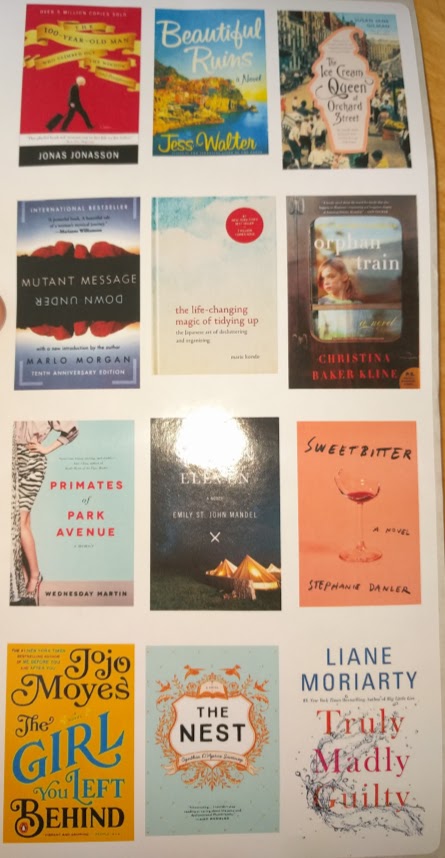
It seems she wanted to produce something special for her book club.  According to Carrie, “our book club has been together for more than 8 years.  And this year, I just happened to be hosting our December meeting.  Given it was the end of the year, I wanted to make something special for our club that commemorated the books we’d read.  I checked Pinterest; and found only different bookmark ideas.  Given that many of our club members use e-readers, bookmarks seemed out-of-date.   So, I decided to make an ornament with book cover images of the books we read January thru December.”
To start the project, Carrie cut a block of wood into cubes using her miter saw.  “For about $15, I got a nice 3’ x 2.5” piece of wood that enabled me to cut out 12 cubes.    After cutting the wood, she sanded the wood using sandpaper to smooth out the edges.
Once the blocks were finished, Carrie went online to get the images of the books.  Initially, she tried to print the images on her desktop printer; but was unhappy with the results.  Given she knew I was in the label business, she asked me to print labels for her.
After listening to her requirements, I suggested she create a 4” x 8” PDF containing the highest resolution book cover page images she could find.  I suggested 4” x 8” size as I had this size available in a glossy paper label making it easy to print. 
4
4″ x 8″ PDF With Images
It would have been easier if we would have created individual smaller labels printing one at a time; but you would need to have the correct sized images and labels to make this work correctly.
I printed 12 labels, each containing the set of images representing each of the books read during the year.
4
4″ x 8″ Gloss Paper Label
Carrie then cut the individual image labels and applied them to the blocks including a special message on the bottom.
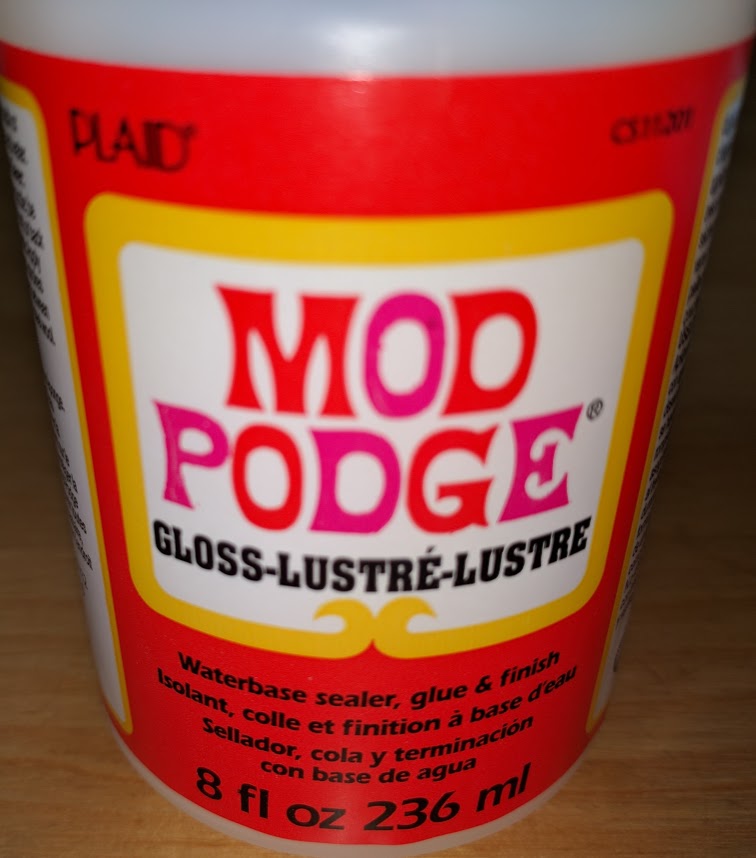
Then, she coated the block with an acrylic sealer to protect and give it a shine.
Finally, she drilled a small hole in the top, added gorilla glue in the hole, and forced the knot on the string holding the loop/bow into the hole. And Voila, Carrie has produced a beautiful holiday ornament for her club!
Hand Made Commemorative Using Labels
According to Carrie, “I got great feedback from our book club members.  In fact, my girlfriend said she wanted one every year!  I think the size of the block and book images were just perfect; not too big or small.”
Hand Made Commemorative Using Labels
After completing the project, Carrie says, “Pictures would be a good idea as well; your kids, grandchildren, etc. to commemorate any event.  The labels with the images made it easy to do!”
Carrie is crafty and creative; and a great neighbor.  And using Carrie’s idea, you can turn the labels printers in your plant or office into your own personal handy-craft tool; a “Fun with Labels” opportunity.
Contact us if we can help you with any of your label needs.
Guy Mikel
855-962-7670
info@colorlabelsolutions.com

Filed Under: Label Printers Tagged With: Color Label Printers, Kiaro, Labels

  • « Previous Page
  • 1
  • 2
  • 3

Recent Posts

  • Tabletop Round Bottle Capture Device
  • Tabletop Round Wrap Labeler
  • LabelOn™ Flat Items Labeler | Flat Bags Sheets Case Labeling
  • LabelOn™ Benchtop Flat Box Labeler
  • There’s Gold in Them Thar Hills – Or Should I Say Green
  • Used Labeling Machinery: Hidden Costs You Did Not Know About
  • LabelOn™ Basic Bottle Wrap Labeling – Longer Wrap – Added Tilt Adjustments
  • LabelOn™ Basic Bottle Wrap Labeling – Longer Wrap – Added Tilt Adjustments
  • LabelOn™ Label Dispenser
  • LabelOn™ Label Dispenser
  • LabelOn™ Benchtop Round Bottle Applicator
  • LabelOn™ Manual Benchtop Round Bottle Labeler
  • LabelOn™ Manual Benchtop Round Bottle Labeler
  • Hello world!
  • Investigating Glass Induction Sealing
  • Investigating Glass Induction Sealing
  • Labeling Unstable Products with LabelOn™ Pucks Labeling Kit
  • Labeling Unstable Products with LabelOn™ Pucks Labeling Kit
  • Used Labeling Machinery: Hidden Costs You Did Not Know About
  • Used Labeling Machinery: Hidden Costs You Did Not Know About

Categories

  • All About Packaging
  • Cap Lining Materials and Machinery
  • Case Studies
  • Induction Sealing Machines
  • Label Printers
  • Labeling Machines
  • Packaging materials and Machinery

Copyright © 2026 · News Pro Theme on Genesis Framework · WordPress · Log in